Chapter 1
Getting started
Getting into ESKIT, trying it without an account, finding your way around and rolling dice.
Getting into ESKIT
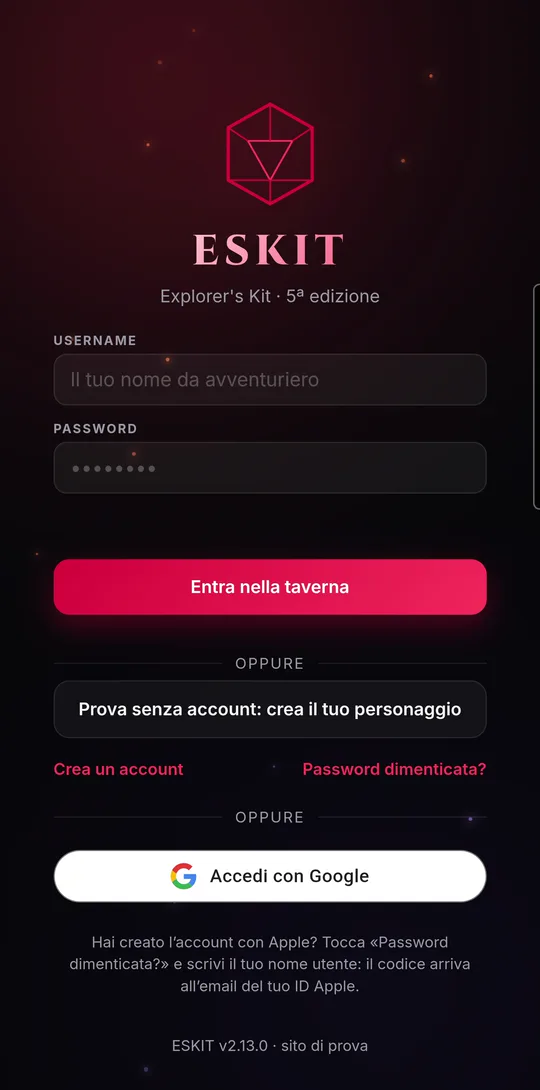
With a free account your characters, scenarios and campaigns stay saved and you find them on every device: on the app.eskit.app website, on Android and on iPhone. You sign in with a username and password, or with Google or Apple.
- Open the app. While it loads you see a spinning red d20; if the server takes a while, “The server is starting up, one moment” appears: just wait a few seconds.
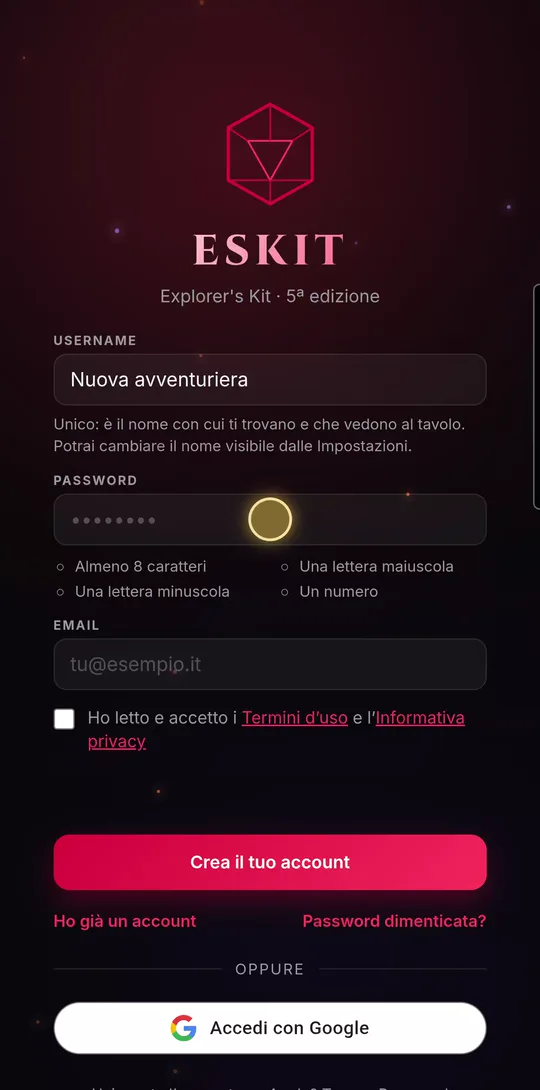
- The first time, tap “Create an account”. Choose a username (at least 3 characters: it’s the name other people find you by), a password and your email, and tick the box for the Terms of Use and the Privacy Policy.
- As you type the password, the app ticks off the rules by itself: at least 8 characters, an uppercase letter, a lowercase letter and a number.
- Tap “Create your account”. If you’re asked to, enter the 6-digit code you received by email and tap “Confirm your email”.
- After that, your username (or email) and password are enough, then “Enter the tavern”. Or tap “Sign in with Google” or “Sign in with Apple”.
Once inside you’re in the Tavern, the home page. Your sign-in is remembered: next time the app lets you in by itself.
On first launch: terms and notifications
Some windows appear only once, right after you sign in. You won’t see them in the videos, but it’s good to know what they ask.
- Terms to accept. If you haven’t accepted the current version of the terms yet, “Before you continue” appears (or “We’ve updated our terms” if they changed). You can read them with “Read the Terms of Use” and “Read the Privacy Policy”; then tap “I accept” to go on, or “Log out”. There’s no X here: you have to choose.
- Notifications welcome (only in the Android and iPhone app). Shortly after your first sign-in, “Turn on notifications” appears, listing what you get: table invitations, campaigns starting or resuming, accepted friendships. “Turn on” asks the phone for permission, “Remind me later” shows it again next time you sign in, “Don't show again” hides it for good.
- Notifications prompt. If you haven’t turned them on yet, the app asks again at the right moment: when your first notification arrives, or when you send a friend request or an invitation. “Yes, notify me” asks for permission, “Not now” won’t ask again for 14 days.
Phone notifications arrive only when ESKIT is closed: with the app open, the bell is updated instead. Tapping one opens the right screen, for example the invitation or the Friends page.
Trying it without an account
Just want a look? You can try ESKIT without signing up and create a character straight away. It stays saved on this device until you decide to keep it.
- On the sign-in screen, tap “Try without an account: create your character”.
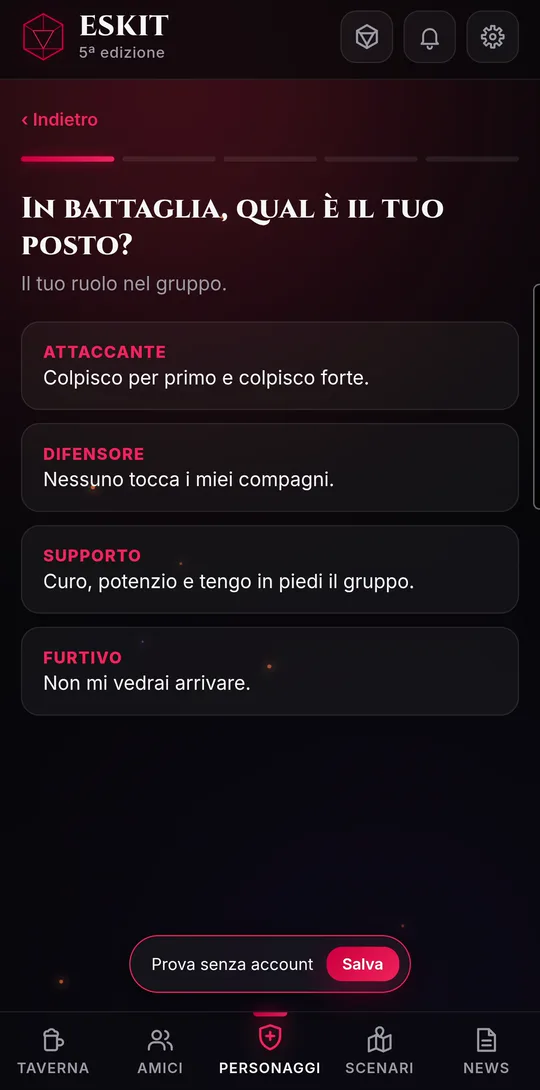
- The five-question quiz opens right away, the same one you use with an account (see “Creating a character with the quiz”). Open the sheet and save it.
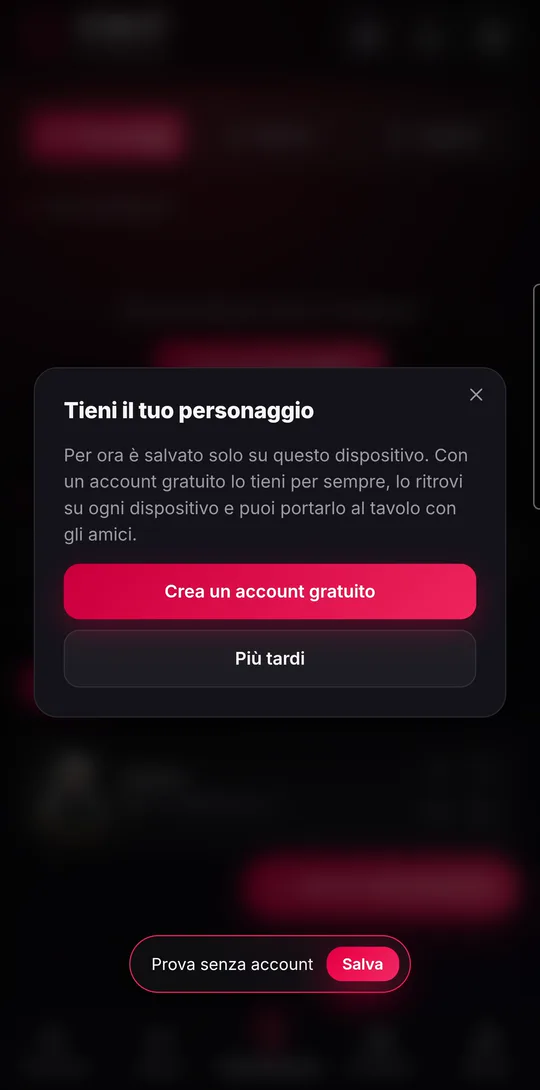
- At the bottom, the “Trial without an account” strip appears with a “Save” button: it reminds you the character lives only on this phone.
- When you want to keep it, tap “Save” and then “Create a free account”. After signing up, the character moves into your account by itself.
- In the trial you can create one character.
- Friends, scenarios and campaigns live in your account: tapping them shows “Play with friends”, inviting you to sign up.
- Your own monsters and magic items need an account; dice, News and the rulebook collection are free to use.
Finding your way around
Every screen has the same frame: a bar at the top, one at the bottom and, almost always, a red action button. Once you know it, you can find your way anywhere.
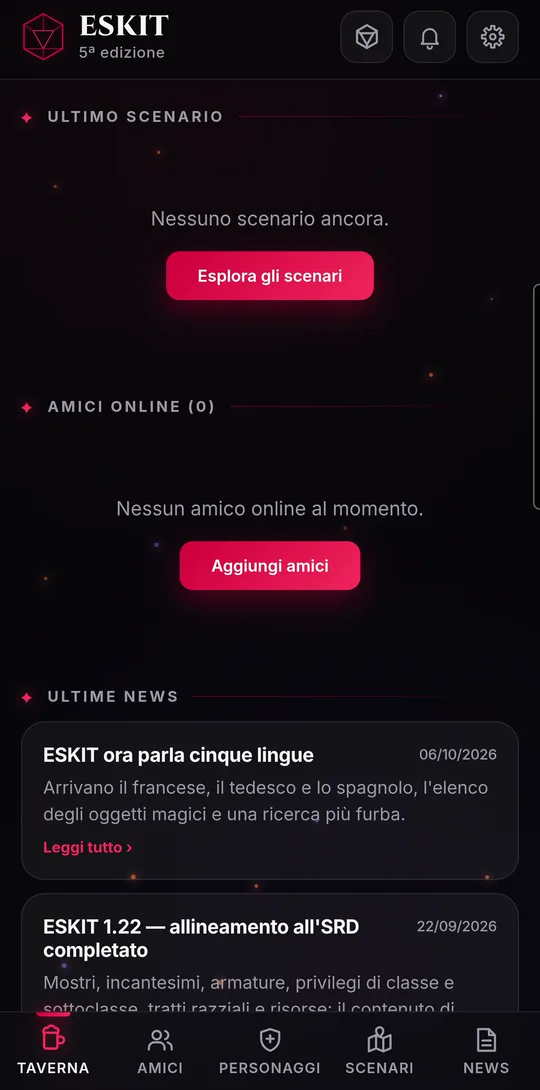
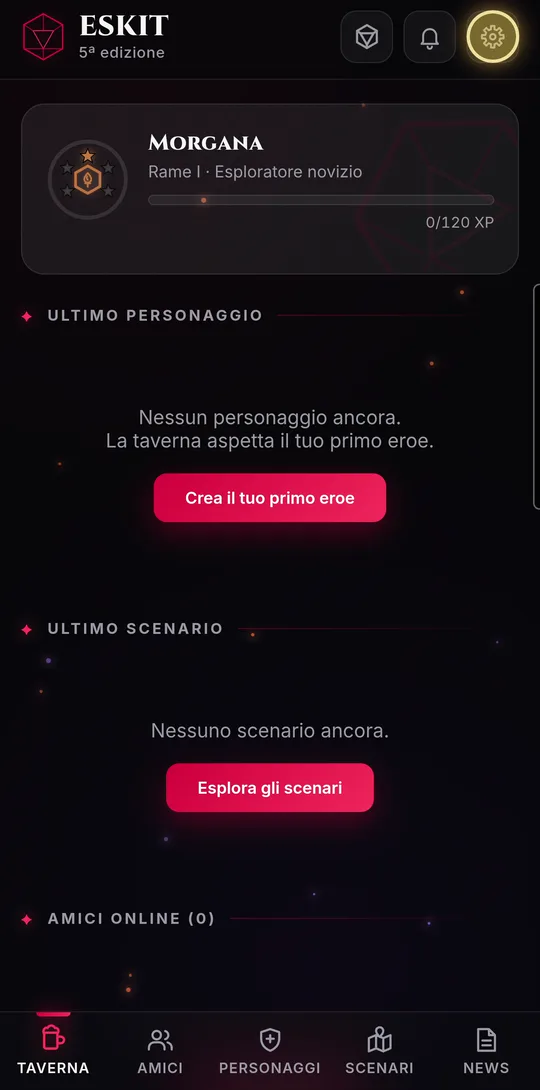
- Tavern: the home page. It shows your rank with its progress bar and the achievements you’ve earned, “Campaigns to finish”, “Latest character”, “Latest scenario”, “Friends online” and “Latest news”. Tap a box to open it.
- Bottom bar: “Tavern”, “Friends”, “Characters” (the middle item, which becomes Monsters or Items depending on the last tab you used in the collection), “Scenarios” and “News”.
- Action button: only one per screen, and it changes with the section: “NEW CHARACTER” in the collection, “NEW SCENARIO” in Scenarios, “NEW PARTY” in Friends. There’s none in the Tavern, News or Settings.
- Top bar: the die opens the dice, the bell opens notifications (the badge counts unread ones), the gear opens the menu with “User”, “Campaigns”, “Settings”, “About the app” and “Log out”.
The bell collects table invitations (with “Join” and “Decline”), friend requests and notices from the ESKIT team. Tap a notification to go where it points; the X deletes it. While you’re at the table, tapping one doesn’t pull you out of the game.
The dice
The dice are always at hand: tap the die in the top bar, from any screen, even without an account or a connection. The window has two panels and reopens on the one you used last.
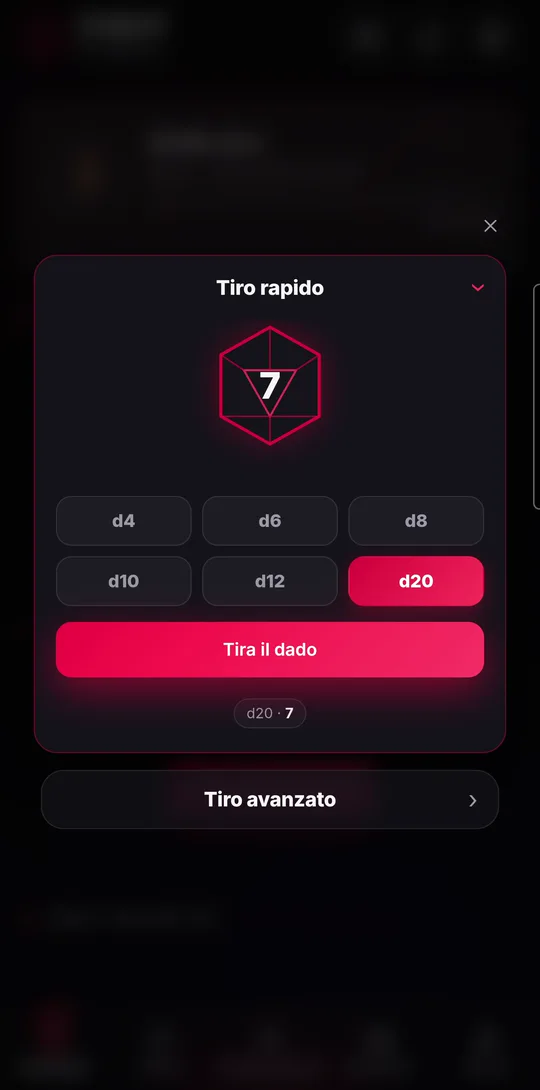
- In “Quick roll”, pick the die (d4, d6, d8, d10, d12, d20) and tap “Roll the die”.
- A 20 on the d20 is a critical hit, with sparks; a 1 is a critical failure. Your last five rolls stay listed below.
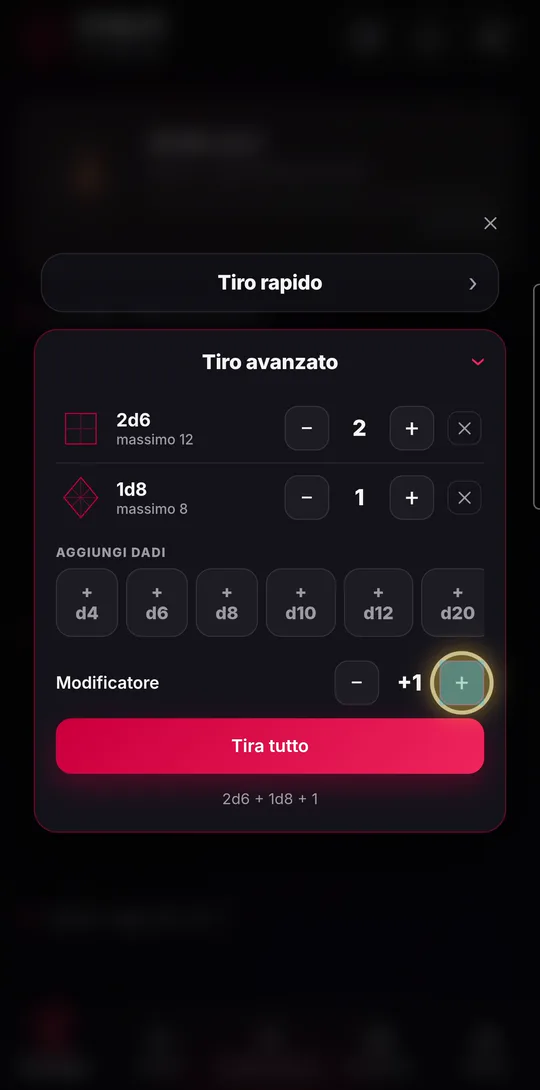
- To add up several dice, open “Advanced roll”. It starts with 1d20: add more dice with “+ d4” … “+ d100”, change how many with “−” and “+” (up to 20 of each kind), and remove a group with the X.
- Set the “Modifier” (from −20 to +20): the formula shows below, for example 2d6 + 1d8 + 3.
- Tap “Roll all”: the total appears. “See the … rolls” shows every single die, with maximums and 1s highlighted.
Automatic updates
ESKIT has no “refresh” button: the app checks for news by itself every few seconds. At the table, this is what brings the GM’s moves to everyone.
- Away from the table it checks every 20 seconds: the bell, new notifications (with a short message and a vibration), friends online in the Tavern and in Friends, freshly arrived invitations.
- At the table it checks every 4 seconds: companions joining or leaving, characters ready, sheets, combat, markers, map changes and music.
- A player with the map open and fog in play gets updates every 2 seconds.
- With the app in the background the check slows down to once a minute; when you come back it runs right away.
The sheets of companions you’re allowed to see are downloaded again at most every 8 seconds: wounds, level or name changed on one side show up on the other. If a campaign is running on the server and you’re not at the table, the app takes you back there by itself.
ESKIT is free and runs in the browser, on phones, tablets and computers.