Chapter 2
Creating a character
Two paths to your hero: the quiz, which suggests one in seconds, or the official sheet to fill in by hand.
Creating a character with the quiz
Not sure where to start? The quiz asks five questions about how you like to play and suggests a complete character: class, species, subclass, alignment and ability scores.
- In the character collection, tap “NEW CHARACTER” and choose “Automatic” (the recommended path).
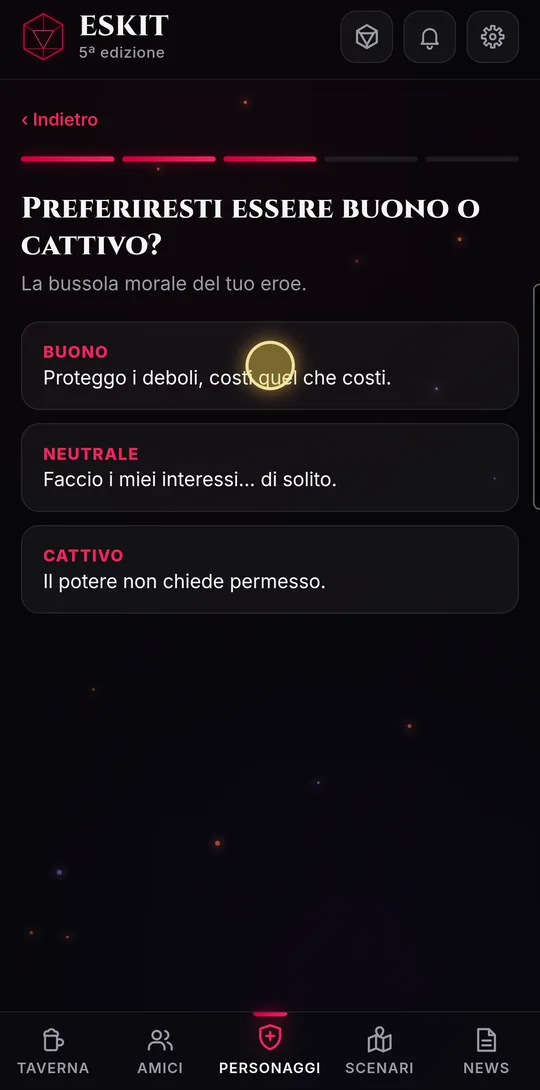
- Answer the five questions: your place in battle, how much magic you want, good or evil, your secret weapon, whether you follow the rules. The bar at the top shows how far along you are.
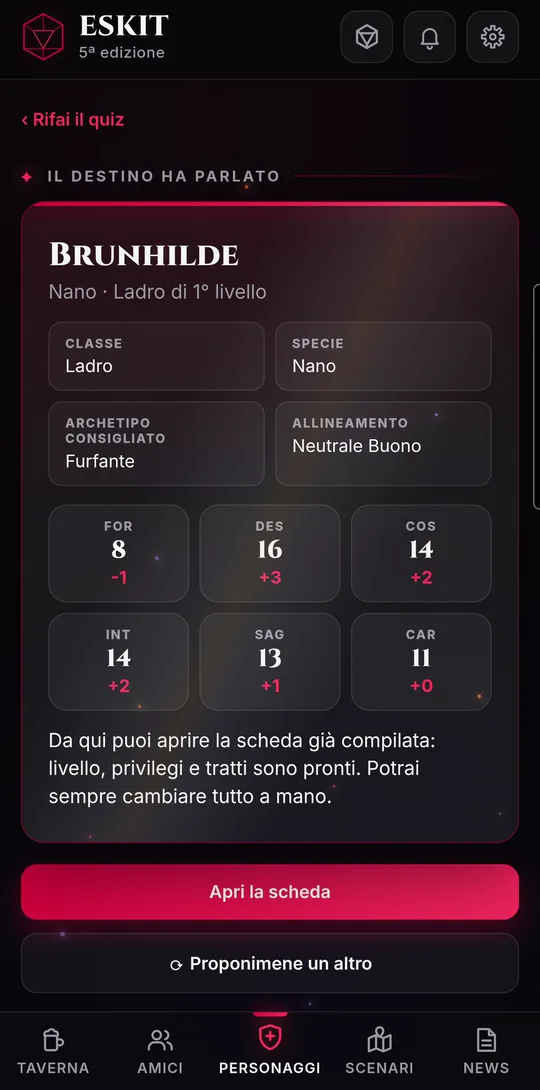
- Fate has spoken: you see the name, species and level 1 class, the recommended subclass, the alignment and the six ability scores with their modifiers.
- Not convinced? Tap “⟳ Suggest another one”: the same answers give you a new suggestion. “‹ Retake the quiz” starts over from the questions.
- Tap “Open the sheet”: it’s already filled in, with features, traits and skills at the right level. Then tap “Save character” at the bottom of the sheet, and it’s in your collection.
The scores are rolled for you (4d6, dropping the lowest die), assigned to the abilities that matter most for the class, and given the species increases.
Creating a character by hand
If you already know the hero you want, start from the blank official sheet: pick from the menus and the sheet fills itself in, at the right level.
- Tap “NEW CHARACTER” and choose “Manual”.
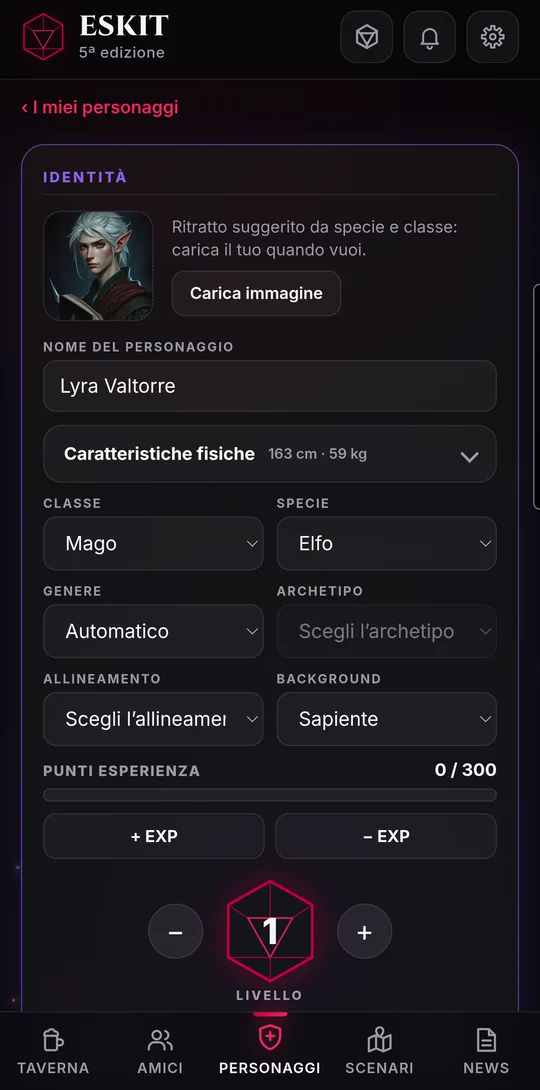
- Type the name, then choose “Class”, “Species” and “Background”; gender, subclass and alignment too, if you like.
- Physical traits (age, height, weight…) are filled in with the suggested values for the species: change them freely.
- Type the six ability scores. Hit points, saving throws, proficiencies, features and traits are calculated for you.
- At the bottom, tap “Save character”: the wax seal “Character forged!” appears and you’re back in the collection.
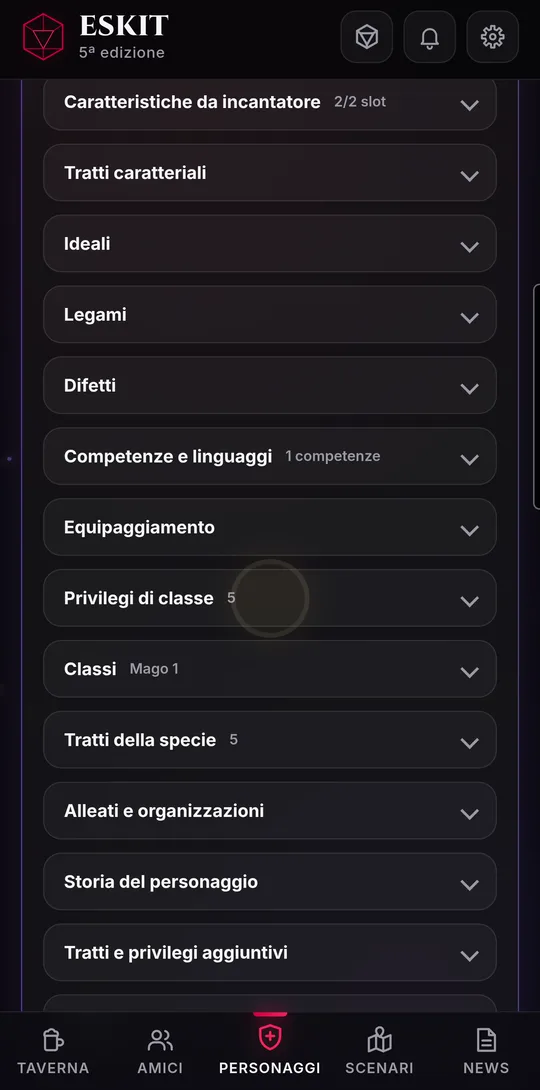
- Each section of the sheet opens and closes when you tap its title; a counter on the right sums up what’s inside.
- In “Proficiencies & languages” you’ll find armor, weapons and tools already worked out from class, species and background, each with its source.
- In “Allies & Organizations” you can upload your organization’s symbol (JPG, PNG or WebP) and describe who supports you.
Open ESKIT
ESKIT is free and runs in the browser, on phones, tablets and computers.