Chapter 3
The character sheet
Everything on the sheet, from levels to treasure: you enter the data, ESKIT does the math.
Portrait, experience and levels
At the top of the sheet are the portrait, experience and level. Leveling up, picking a feat or taking a second class all happen here, and the sheet updates itself.
- Portrait: if you don’t upload one, the app suggests one based on species, class and gender. “Upload image” accepts JPG, PNG or WebP up to 30 MB; tap the portrait to see it full screen.
- Experience: “+ XP” and “− XP” add or remove experience points. When you reach the threshold, you level up automatically.
- Level: you can also go up or down directly with “+” and “−” next to the level crest.
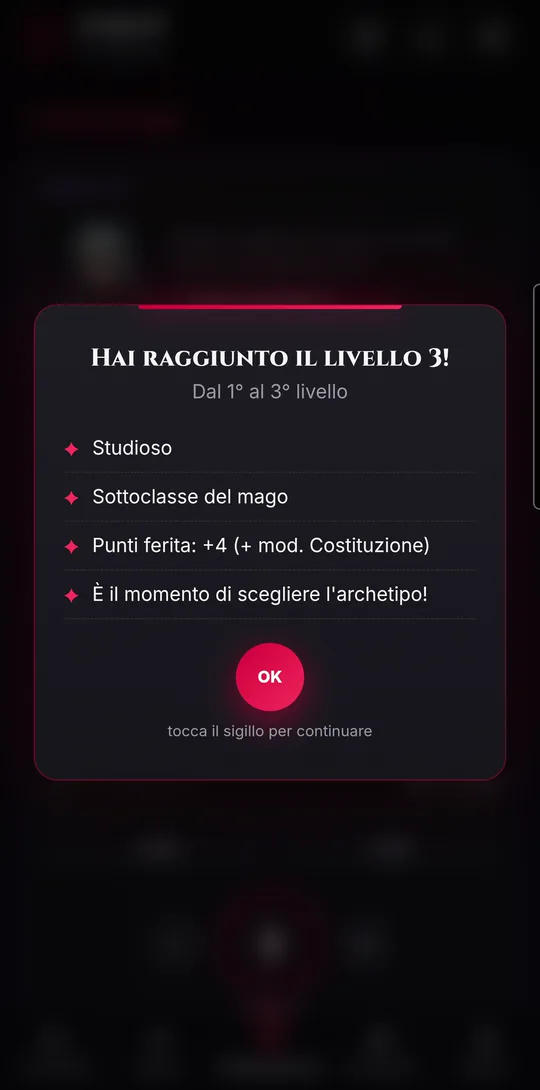
Every new level opens the “You reached level…!” scroll: features unlocked, extra hit points, proficiency bonus. Tap the seal to continue.
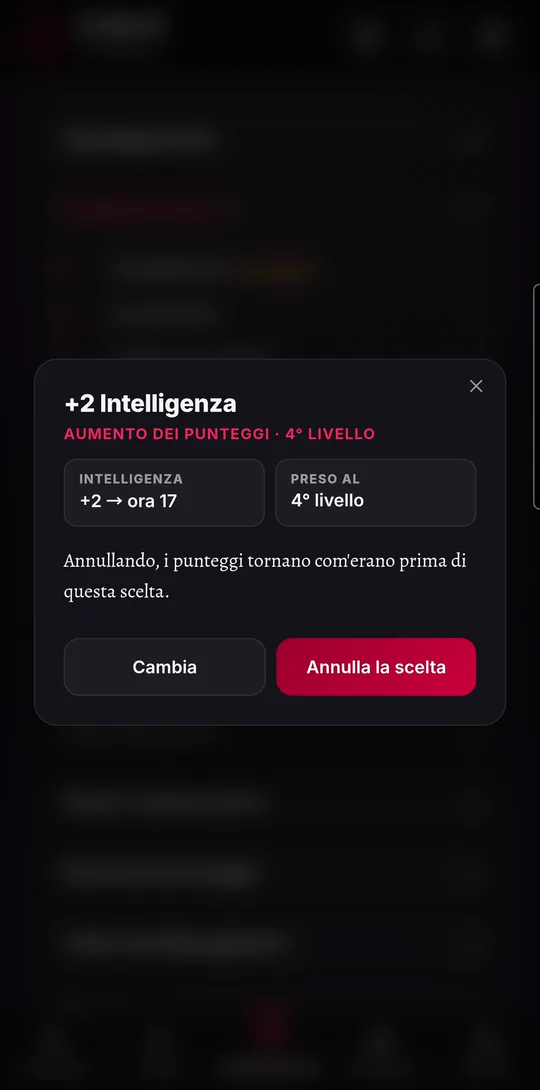
- At level 4 (and the later levels your class grants), “Ability Score Improvement” appears in “Class Features” marked “to choose”: tap it.
- Choose between “+2 to one” ability, “+1 +1 to two”, or “Feat” (even one of your own, with “+ Add feat”).
- Tap the choice again to “Change” it or “Undo the choice”: the scores go back to what they were.
For multiclassing, open the “Classes” section and tap “+ Add a class”: you need at least level 2 and a 13 in the main ability of both the class you leave and the one you take. One level moves to the new class; from then on, when you level up ESKIT asks “Which class levels up?” (or “Which class gets the level?” if you level up through experience).
Ability scores, hit points and death saves
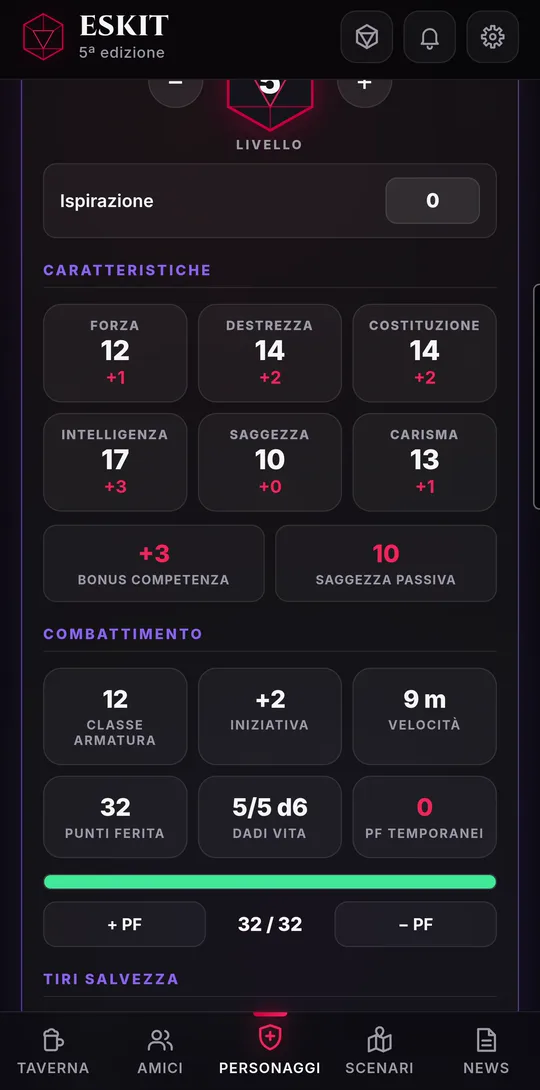
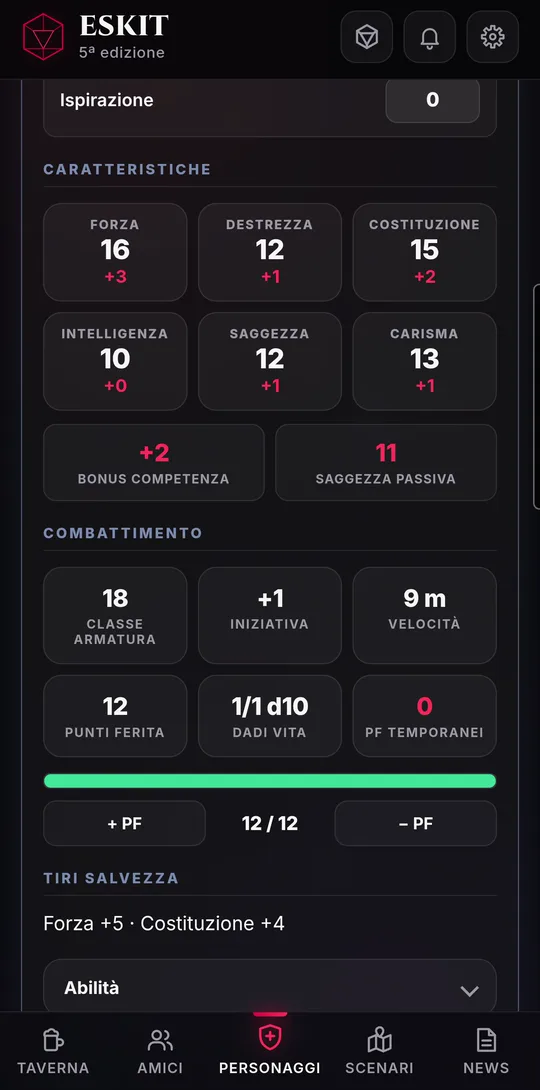
The heart of the sheet: you type the six scores, and everything that follows from them is recalculated with every digit.
- Ability Scores: each score shows its modifier underneath. Below the boxes are “Proficiency bonus” (from your level) and “Passive Perception”.
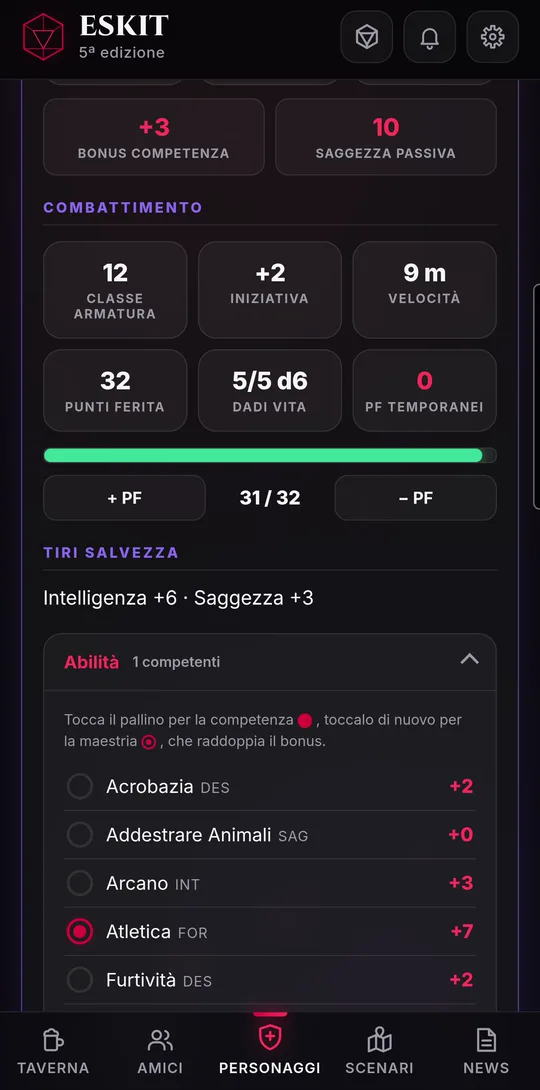
- Combat: Armor Class, initiative, speed, maximum hit points and Hit Dice are already worked out from class, level, species and armor. The hit point bar turns amber and then red as they drop.
- Saving Throws: the two from your class, with the bonus ready.
- Skills: tap the dot for proficiency, tap it again for expertise (double bonus), a third time to clear it. “Assign automatically” sets the proficiencies your species, background and class give you.
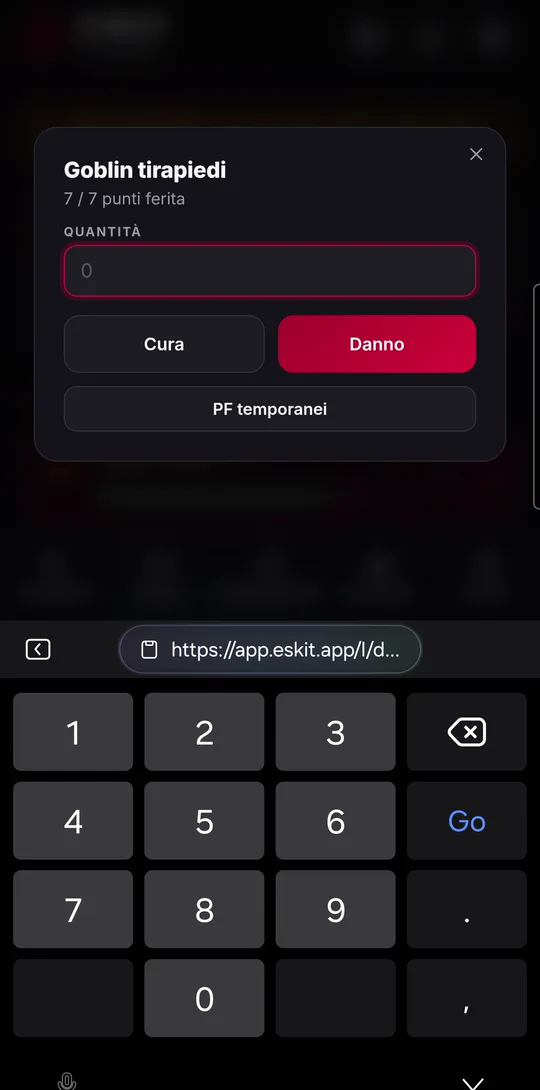
- For a wound, tap “− HP”, enter the “Quantity” and confirm: damage uses up “Temporary HP” first, then hit points.
- To heal, tap “+ HP”: hit points go back up to the maximum, never beyond.
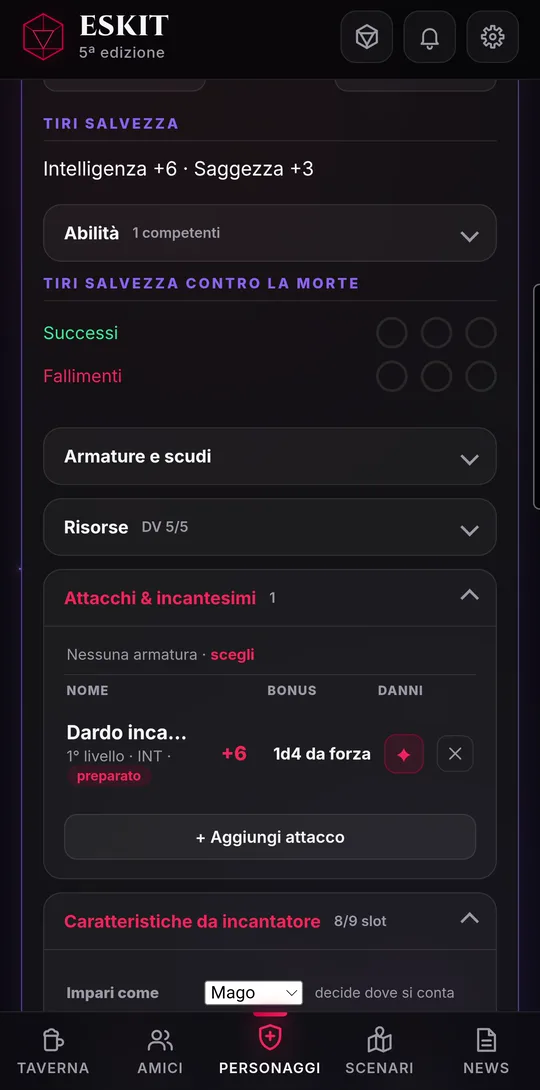
- At 0 hit points, mark death saving throws by tapping the “Successes” and “Failures” dots. Three successes and the character is stable; three failures and it dies.
Taking damage at 0 hit points marks a failure by itself, and regaining even a single hit point resets the death saves.
Armor and attacks
Armor and weapons come from the rulebook tables: Armor Class, attack roll and damage are calculated for you, with the right proficiency.
- Without armor, your Armor Class is 10 plus Dexterity (or your class’s unarmored defense). Open “Armor & shields” and tap “+ Add armor or shield”.
- The list is split into light, medium, heavy and shields; each row tells you the Armor Class you’d have wearing it. Pieces you’re not proficient with are grayed out.
- Tap a piece to put it on. Tap it again in the section to see the full Armor Class calculation, with “Change” and “Remove”.
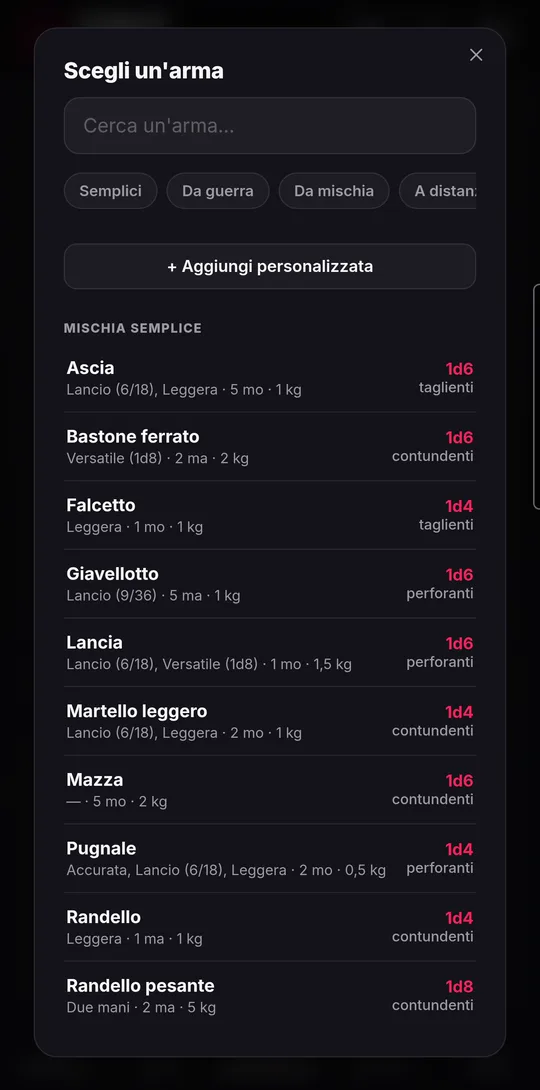
- For a weapon, open “Attacks & spells”, tap “+ Add attack” and choose “Weapon”. Search or filter, then tap the weapon: it joins your attacks with the right roll and damage, and your equipment too.
- A weapon or armor that isn’t in the rulebook? Use “+ Add custom”: name, damage, ability, proficiency.
- Tap an attack for details: “How it’s calculated” explains the bonus; if you’re not proficient, you can use “Mark as proficient”.
- The “Wearing: …” line at the top of attacks and equipment takes you back to your armor.
- Dragonborn already have their “Breath Weapon” among the attacks: damage and saving throw grow with level; “Use the breath weapon” spends a use, “Recover the use” gives it back.
Spells
Spells come from your class’s spell list, which already knows the limits for your level. When you cast, the slot is spent automatically.
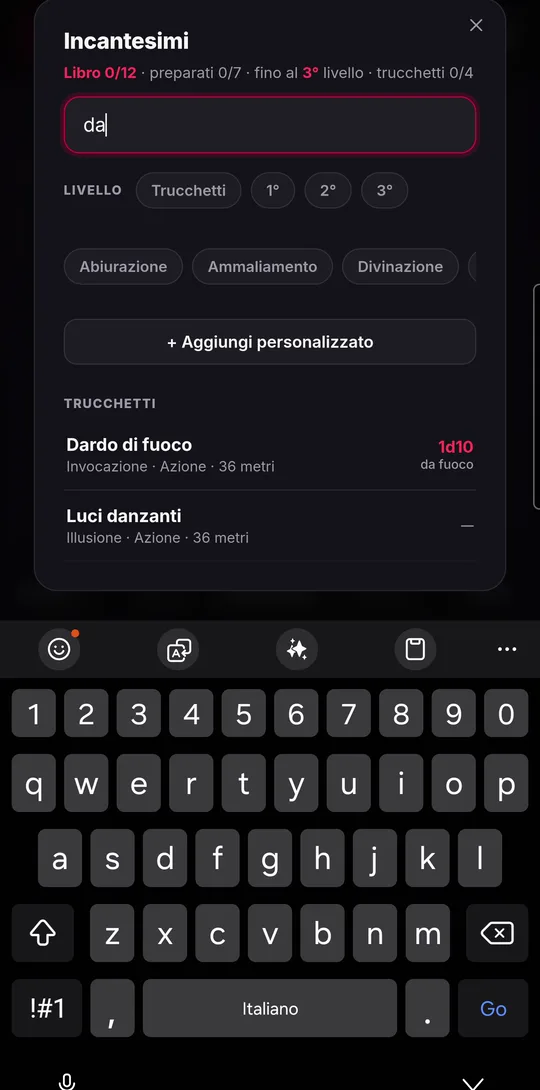
- In “Attacks & spells”, tap “+ Add attack” and choose “Spell”. At the top of the list you see how many spells you can still take.
- Search by name or filter by level and school, then tap a spell: read casting time, range, components, duration and the attack bonus or DC, already calculated.
- Tap “Learn”: it joins your attacks. To remove it, open it again and tap “Forget it”.
- Wizards choose each day which spells to prepare: tap the “to prepare” / “prepared” tag next to the spell.
- To cast, tap ✦ on the row: the first free slot of the right level is spent (at equal level, the pact slot first). Cantrips don’t use slots.
The “Spellcasting” section sums it all up: ability, attack bonus, saving throw DC, how many cantrips and spells you have compared with the maximum, and the slot boxes. Tap a box to spend a slot by hand, tap it again to get it back.
- A spell that isn’t in the rulebook? In the list, tap “+ Add custom” and fill in “Offensive spell”: name, level, ability, damage, and whether it uses an attack roll or a saving throw.
- With two spellcasting classes, “You learn as” decides which class the spells you learn count towards.
The Circle of the Land druid
From level 3, the Circle of the Land druid picks a land: that choice decides the circle spells, which are always prepared.
- Open the “Spellcasting” section: “Circle land · to choose” appears with four buttons.
- Tap “Arid”, “Polar”, “Temperate” or “Tropical”.
- The circle spells for that land show up among your attacks by themselves, at the right level, and don’t take up places among your prepared spells.
As you level up, the land’s new spells are added automatically. To change land, tap the chosen one again: the choice is cleared and you can pick another.
Resources, rests and the warlock
“Resources” holds everything that gets used up and recovered: rage uses, focus points, sorcery points, the breath weapon, Hit Dice. The number of uses already comes from your level.
- Tap a resource’s boxes to spend it; tap an empty one to get it back.
- Sorcerers have “Create a slot” and “Slot → points” to turn sorcery points into slots and back.
- “Exhaustion” goes from 0 to 6: change the level with “−” and “+”, and initiative, saving throws, skills, attacks and speed are recalculated at once.
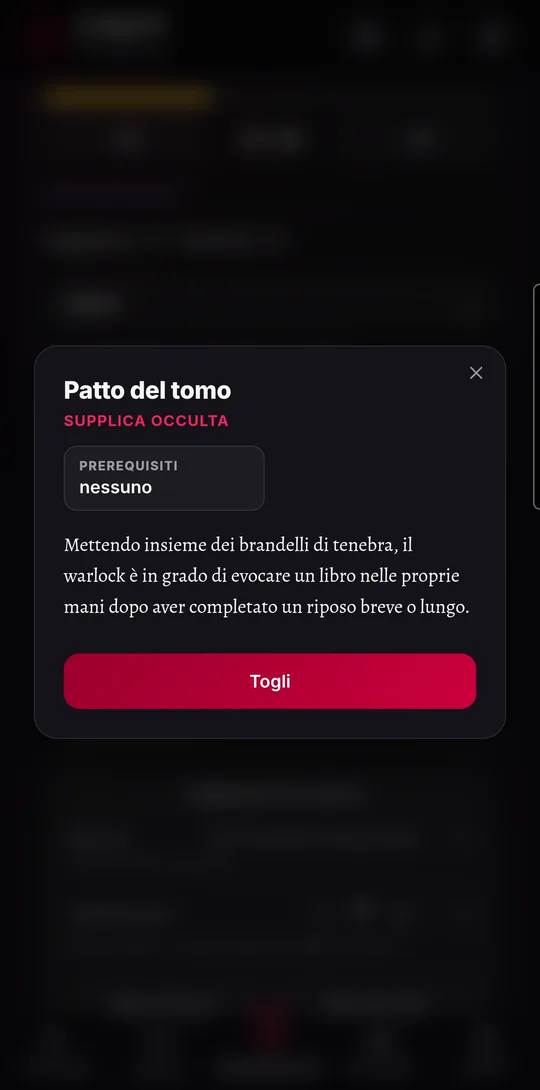
- Warlocks find their invocations at the top: tap “+ Add invocation”, choose from the “Eldritch invocations” list (missing prerequisites are marked in red) and tap an invocation to read it or “Remove” it. From level 11 they also choose their Mystic Arcanum.
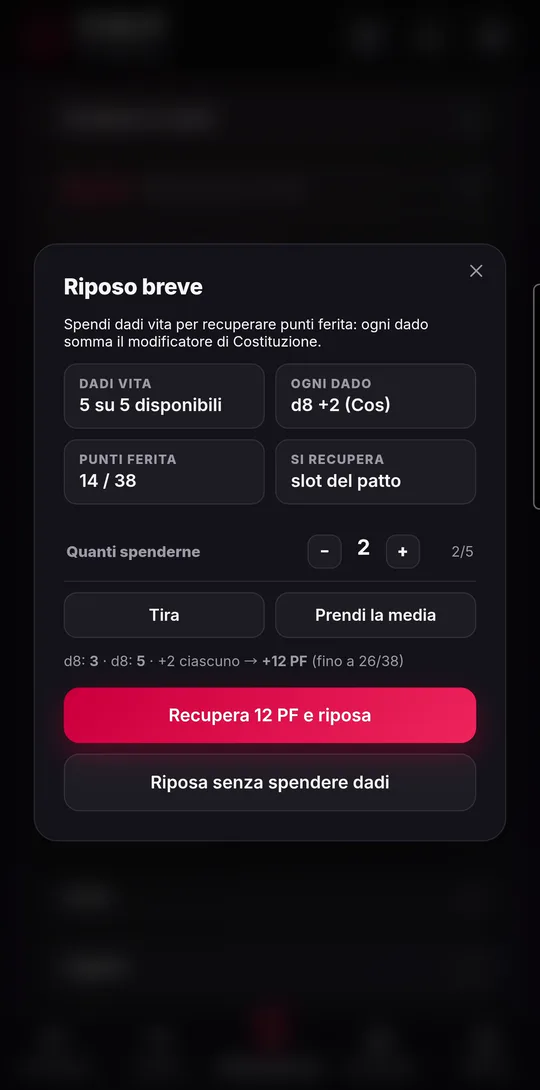
- Short rest: tap “Short rest” and choose how many Hit Dice to spend with “−” and “+”.
- Tap “Roll” or “Take the average”: you see how many hit points you regain, Constitution modifier included.
- Confirm with “Regain … HP and rest”. Short-rest resources come back too, such as pact slots. If you don’t want to spend dice, use “Rest without spending dice”.
Long rest: just tap “Long rest”, no windows. Hit points to maximum, slots, uses and resources recovered, half your Hit Dice back, temporary HP and death saves reset, one level of exhaustion removed.
Proficiencies, equipment and treasure
The last sections of the sheet hold what you know and what you carry. Much of it is already filled in; the rest takes just a few taps.
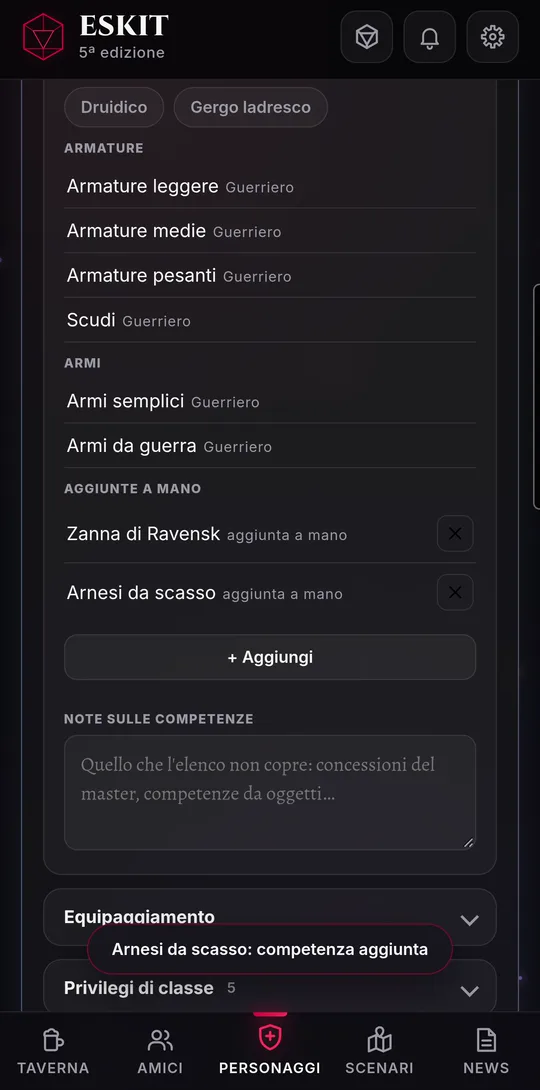
- Proficiencies & languages: languages turn on and off with a tap. Proficiencies in armor, weapons and tools come by themselves from class, species and background.
- An extra proficiency (granted by the GM, an item, a feat)? Tap “+ Add” and pick a weapon or a tool, or type it in: attack bonuses update and, for example, “Medium armor” unlocks that armor.
- Equipment: weapons taken from attacks are already there. “+ Add tool” lets you pick from the rulebook list; in the same window, “+ Add custom” creates your own item with quantity, cost, weight and notes.
- Magic items: “+ Add magic item” opens the compendium. Tap an item’s name to read its card; “Attune” attunes it (3 at most).
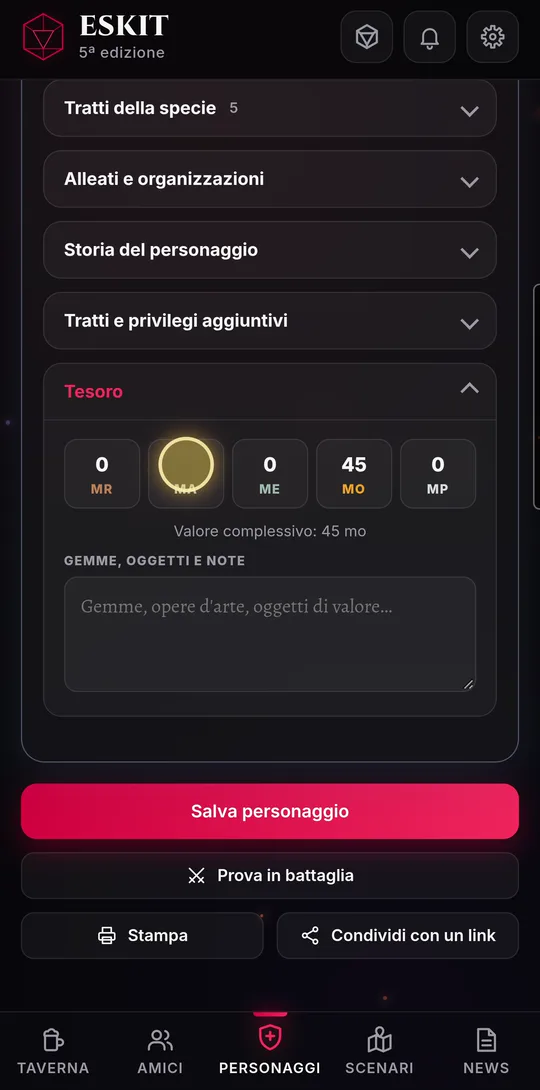
- Treasure: type your coins (cp, sp, ep, gp, pp) and the “Total value” in gold pieces is calculated for you.
Equipment also shows your carrying capacity, already worked out from Strength.
Saving, printing, sharing, battle testing
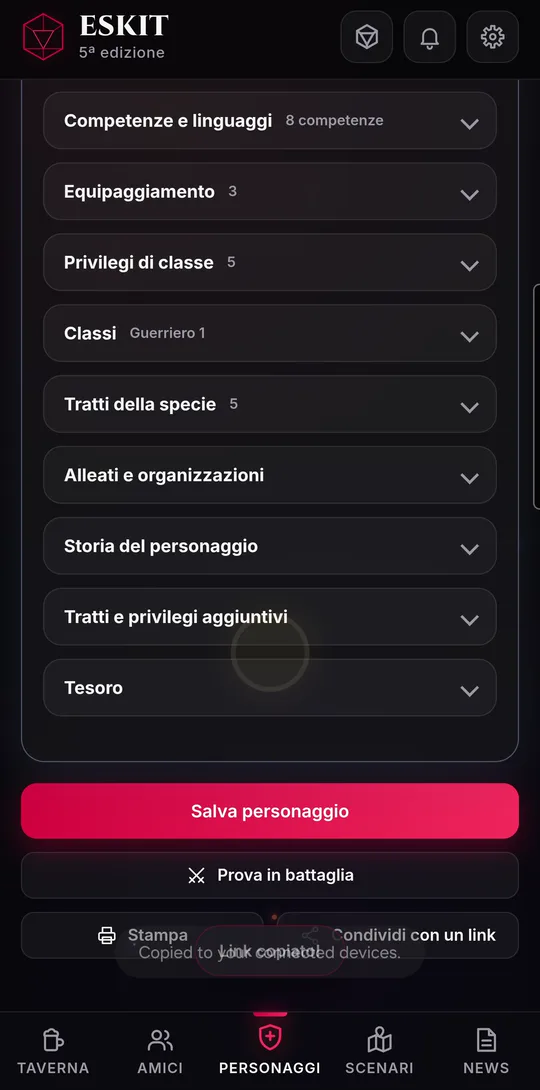
At the bottom of the sheet there are four buttons: “Save character”, “Battle test”, “Print” and “Share with a link”. The last three appear once the character has been saved.
- Save character: saves and goes back to the collection, with the “Character sheet updated” seal.
- Leaving with unsaved changes: ESKIT asks “Save your changes?” with “Save and leave”, “Leave without saving” and “Stay on the sheet”.
- Print: the sheet on paper, or as a PDF by choosing “Save as PDF” in the print window. Before printing, closed sections open by themselves.
- Share with a link (needs an account): ESKIT creates a link; whoever opens it gets a copy of the character among their own. Use “Send the link” or “Copy link”; “Turn off the link” disables it, and copies already received stay.
- Battle test: a practice fight on a copy of the sheet. Tap the button; if you like, leave “Start rested” on.
- Add monsters with “+ Add another monster”: the bar tells you how hard it will be. Then “Roll initiative”.
- In the turns you are your own GM: “Next turn ›”, “±” for damage and healing, the flag for conditions. Tapping your character opens the copy of the sheet; come back with “‹ Turns”.
- “End combat” throws the copy away: the real sheet is as it was.
Sheets converted to the new rules
ESKIT follows the rules in the SRD 5.2.1 version. Sheets created with the previous version (SRD 5.1) were converted automatically, but a few choices the new rules require are up to you.
- Below the identity box, a converted sheet shows the notice “Updated to the 2024 rules · complete … choices ›”.
- Tap it: the list of missing choices opens, for example species, background, subclass, chosen skills or languages.
- Close the window and complete each item in its section of the sheet; then tap “Save character”.
When nothing is missing any more, the notice disappears. The scores the background grants under the new rules aren’t added a second time on top of the ones you already had.
ESKIT is free and runs in the browser, on phones, tablets and computers.