Chapter 4
The collection
Characters, monsters and magic items in one place: search, sort, create your own and receive other people’s.
The character collection
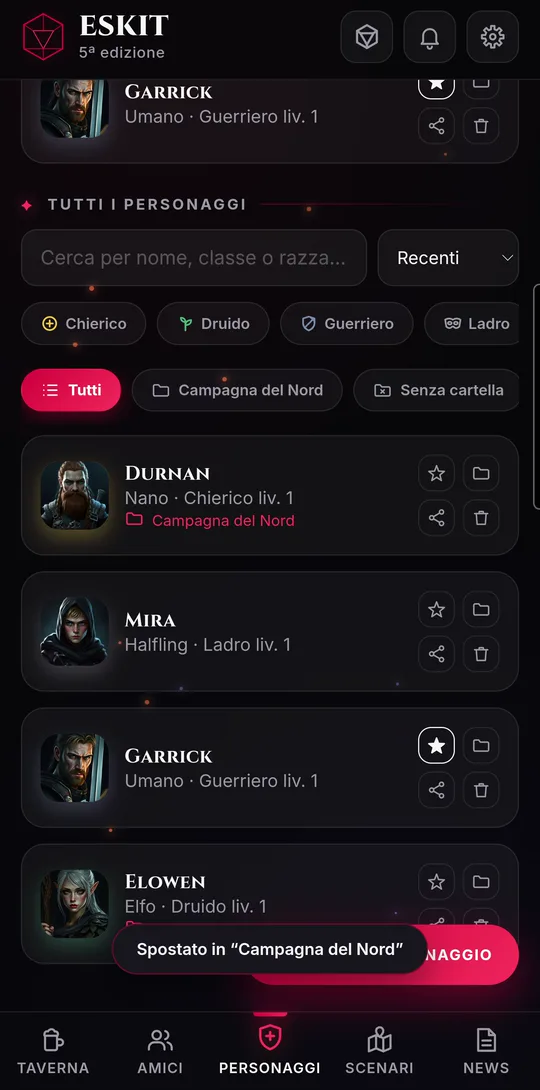
The collection opens from the middle item of the bottom bar and has three tabs at the top: “Characters”, “Monsters” and “Items”. It always reopens on the last one you used.
- Featured: at the top are the characters with a star, three at most. Tap the star on a card to add or remove it.
- Search and sort: “Search by name, class or race…” filters as you type; “Sort” orders by “Recent”, “Name A–Z” or “Level ↓”.
- Tags: under the search box are the classes and species of your characters; tap a tag to filter, tap it again to clear the filter.
- Folders: tap “Folder” to create one. On each card, the folder icon opens “Move to folder”: pick a folder, “∅ Remove from folder”, or type in “New folder…” and tap “Create”. The “All” tag, your folders and “No folder” filter the list.
- Share: the share icon creates the character’s link, just as from the sheet.
Tap a card to open the sheet. Stars and folders are saved to your account straight away.
The bestiary
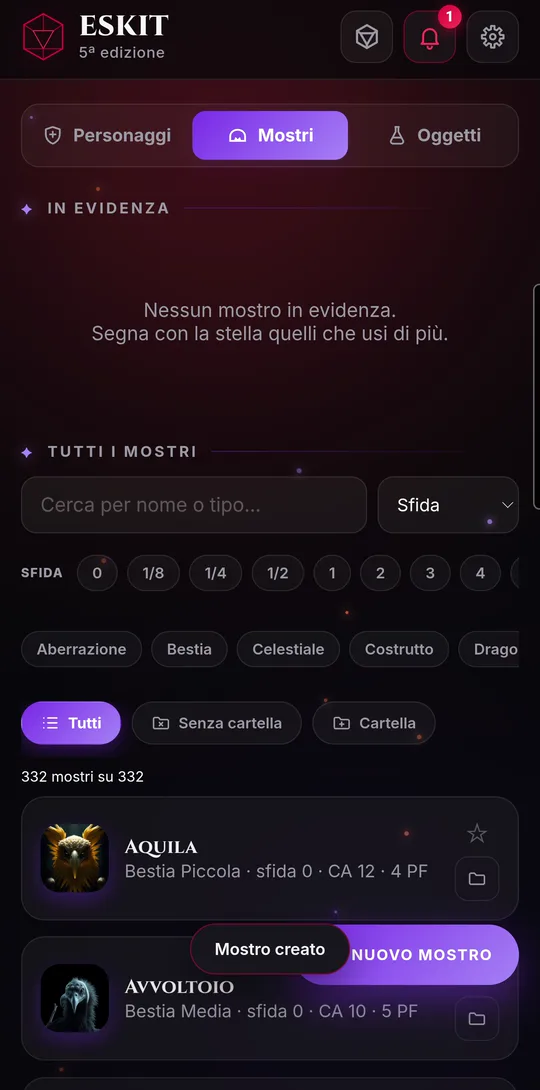
The “Monsters” tab holds the bestiary: every monster in the rulebook with its stats, plus the ones you create. The section takes on a different color, so you always know where you are.
- Search by name or type, in English too. Sort by challenge or by name.
- Filter with the challenge rating and creature type tags: you can turn on several at once. At the top you see how many monsters are left.
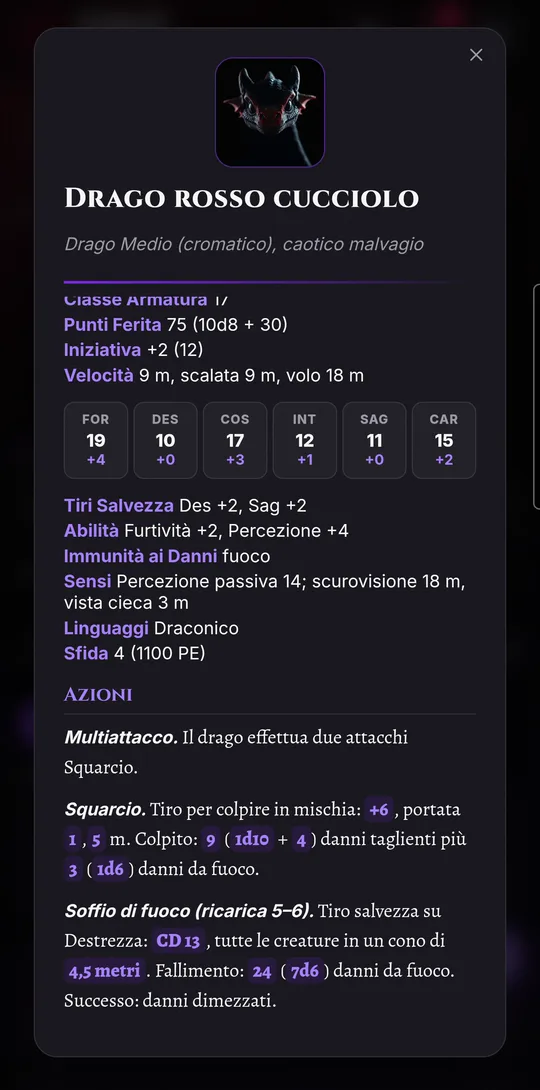
- Tap a card for the full stat block: Armor Class, hit points, speed, ability scores, senses, languages, traits, actions, reactions and legendary actions.
- Stars and folders work just as for characters.
- For a monster of your own, tap “NEW MONSTER”.
- Upload an image if you like, then fill in name, type, size, challenge, Armor Class, hit points, speed and ability scores.
- In “Actions and traits”, write one entry per line, in the form “Name. Description”.
- Tap “Save the monster”. Fields left empty get a default value, and experience points come from the challenge.
Magic items
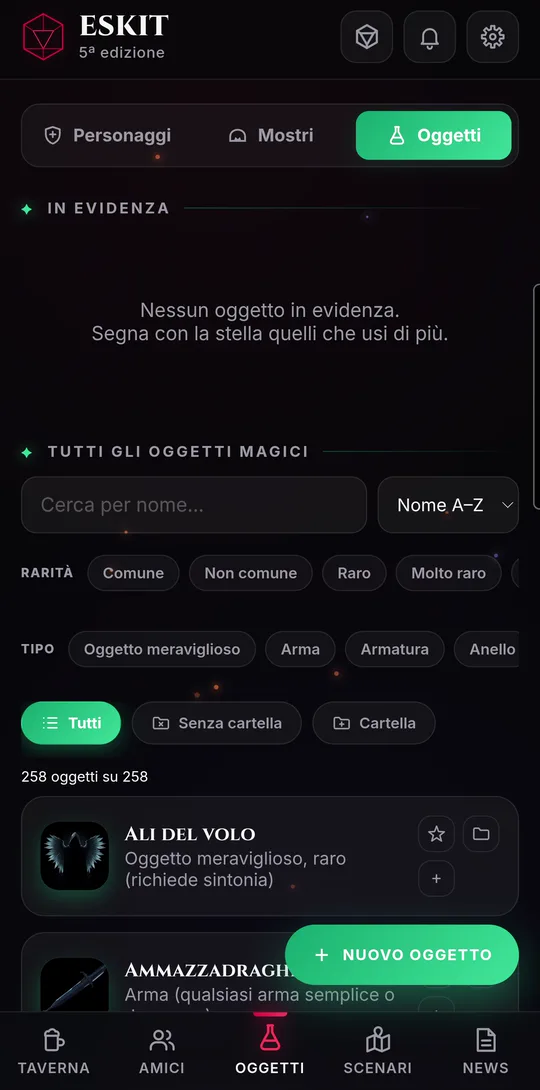
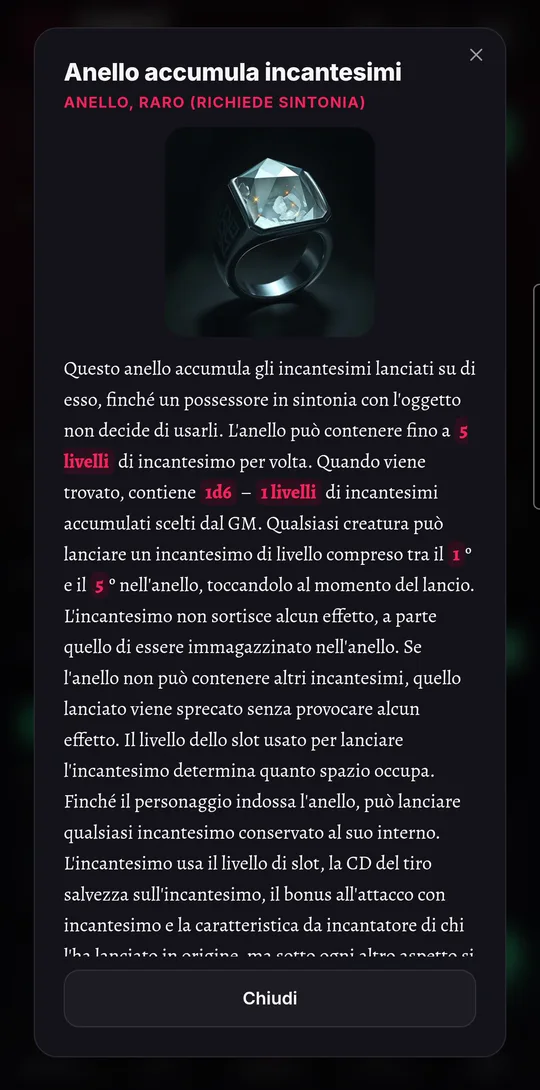
The “Items” tab holds the magic items from the rulebook, with their images, and the ones you create. From here you give them to your characters with a tap.
- Search by name and filter by rarity and type; “Custom” shows only yours.
- Tap a card for the item card: image, description, rarity and whether it requires attunement.
- The “+” on the card (or “Add to a character” on the item card) opens the list of your characters: tap a name and the item goes into their equipment, already saved. For potions, scrolls and ammunition you also choose the quantity.
- Stars and folders work just as for characters.
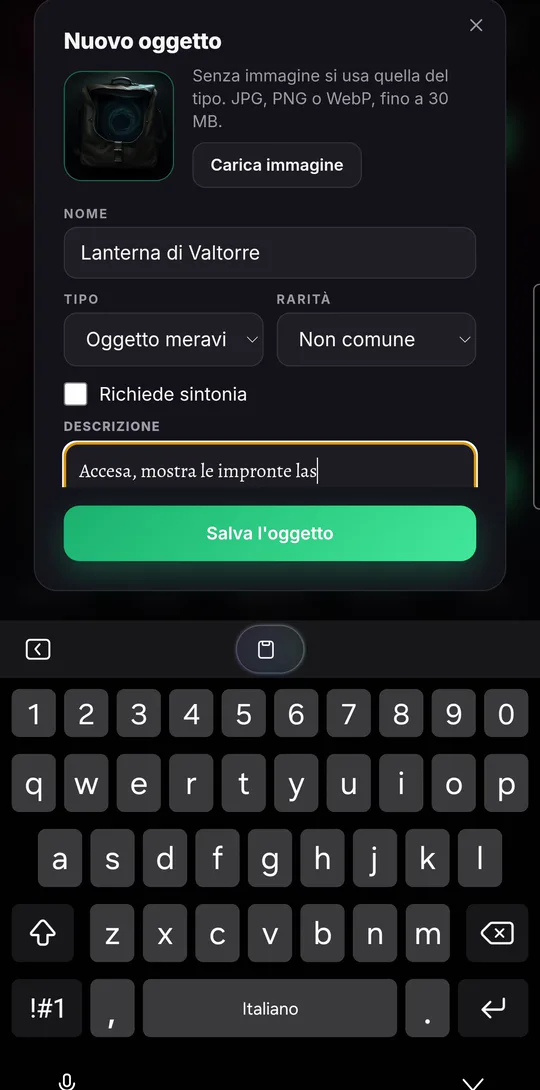
- For an item of your own, tap “NEW ITEM” (you need an account and a connection).
- Choose an image, then name, type and rarity; tick “Requires attunement” if needed.
- Write the “Description”: what it does, how it’s used, how many charges it has.
- Tap “Save the item”.
On the card of one of your own items you also find “Edit”, “Share” (it creates a link, as for characters) and “Delete”.
Receiving a character, an item, a scenario
Characters, your own magic items and scenarios are shared with a link. Whoever opens it gets a copy of their own: they can change it as they like, and the original stays as it is.
- The person sharing taps the share icon (or “Share with a link” on the sheet): ESKIT creates the link, to be sent with “Send the link” or “Copy link”.
- The person receiving it taps it. If they have the app installed, the link opens the app instead of the browser.
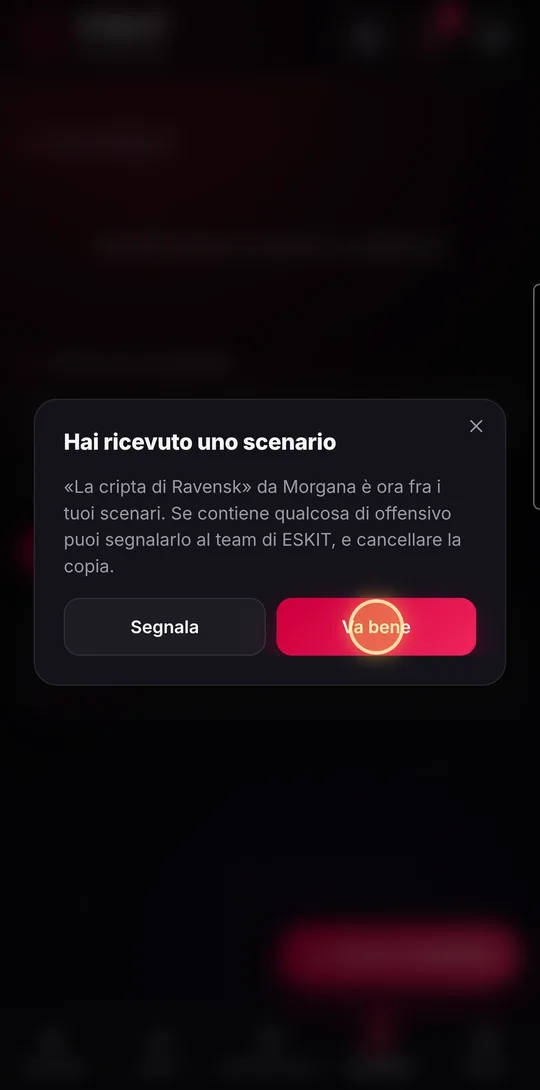
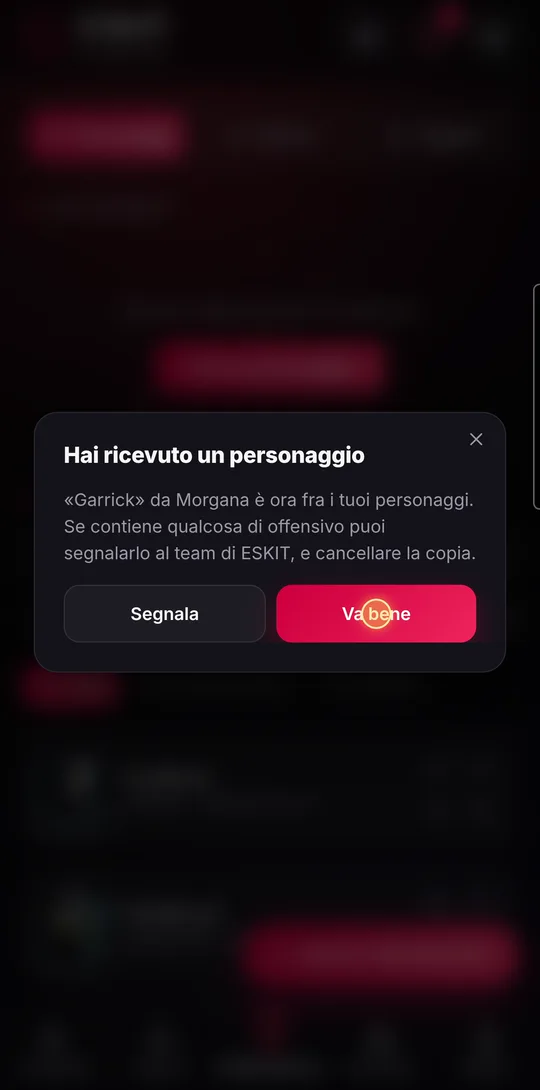
- The copy arrives straight away: a character among characters, an item among magic items, a scenario among scenarios (with its markers and monsters).
- The “You received…” window appears, with the name of the sender. Tap “OK”; if it contains something offensive, “Report”.
- You need an account to receive a copy. If you haven’t signed in yet, the sign-in screen tells you who is sending you what: the copy arrives as soon as you sign in or sign up.
- If you already have that copy, ESKIT tells you and doesn’t duplicate it.
- Whoever shared it can disable the link with “Turn off the link”: copies already received stay.
ESKIT is free and runs in the browser, on phones, tablets and computers.