Chapter 7
The campaign at the table
From the first invitation to the last session: setting up the table, playing, fighting, pausing and ending the campaign.
Creating a campaign and inviting (GM)
Whoever creates the campaign is the GM. All your campaigns, ongoing and finished, are in the top menu under “Campaigns”.
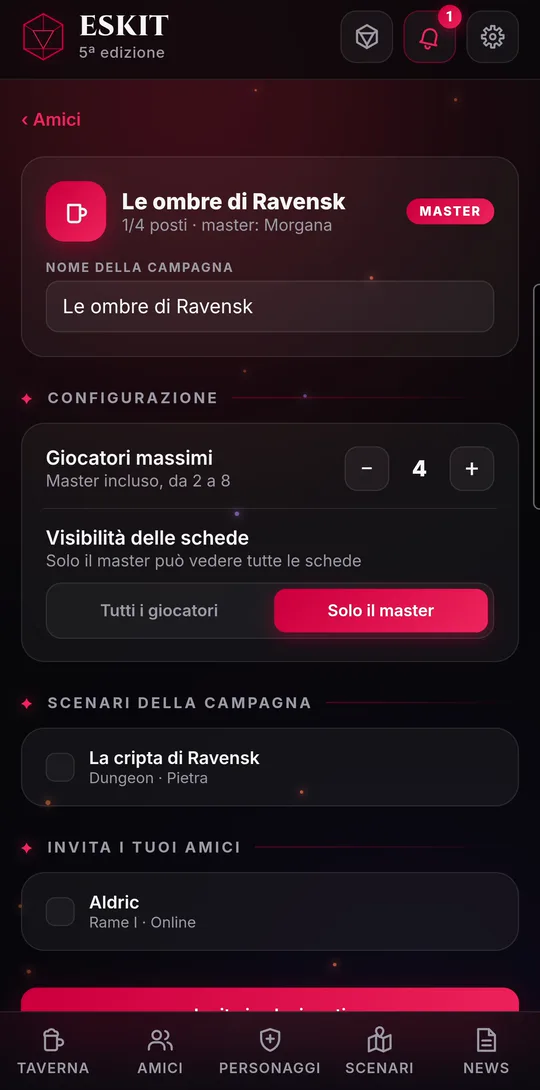
- Go to the “Friends” page and tap “NEW PARTY”. You need at least one scenario: if you have none, ESKIT takes you to create one.
- Type the “Campaign name” and choose “Max players” (from 2 to 8, GM included).
- Under “Character sheet visibility”, choose whether sheets can be seen by “All players” or “Only the GM”.
- Under “Campaign scenarios”, tick the places to bring to the table.
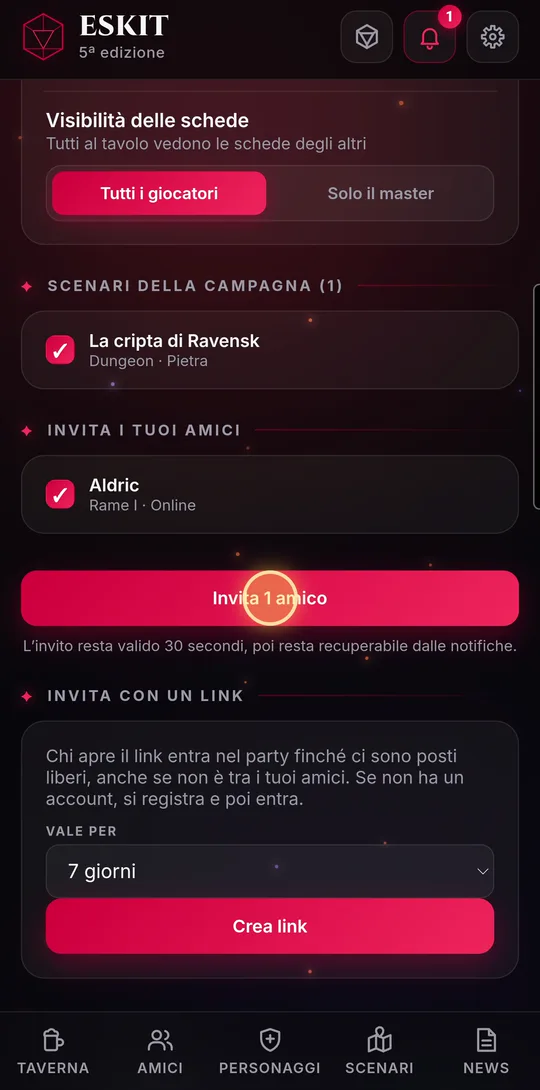
- Under “Invite your friends”, tick who you want and tap the “Invite…” button. Your friends get the invitation in the bell.
- Once at least one player is seated, tap “Confirm and open selection”.
- For people who aren’t your friends there’s “Invite with a link”: choose how long it lasts (“Valid for” 24 hours, 7 or 30 days), tap “Create link” and send it with “Share” or “Copy link”. “Revoke” disables it, “Regenerate” creates a new one.
- Whoever accepts shows up under “At the table” tagged “at the table”; those who haven’t answered yet are “waiting”.
- A player who taps the invitation sees a confirmation window with “Join” and “Decline”.
Joining a campaign (player)
As a player you join the table in two ways: with a friend’s invitation, which arrives in the bell, or with an invitation link from the GM.
- Open the bell and tap “Join” on the invitation: “Invitation to play” opens. Tap “Join” (or “Decline”).
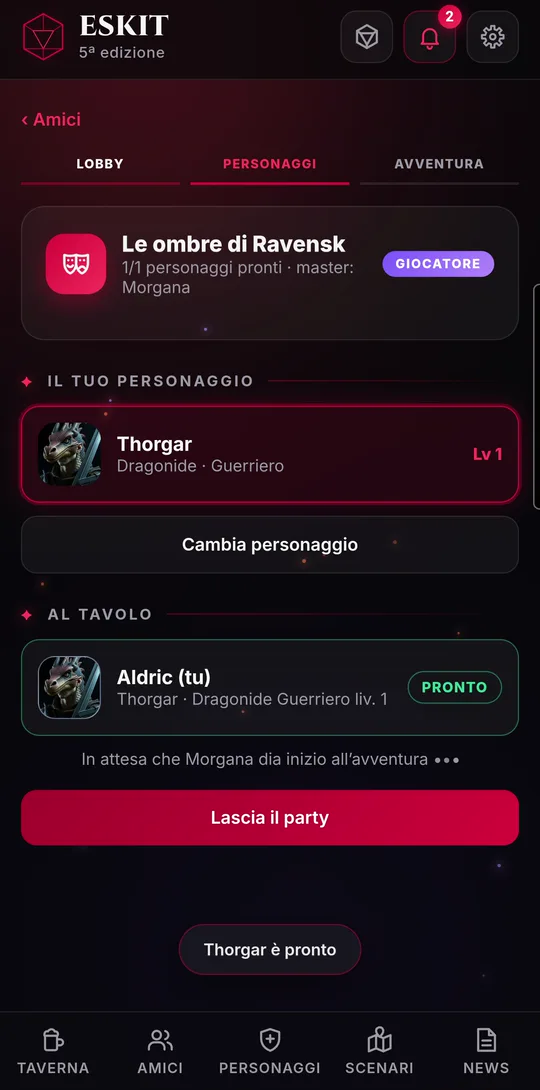
- You’re in the lobby: you see who’s seated, the “Table rules”, and that you’re waiting for the GM to open selection.
- When the GM opens selection, tap the character you want to play under “Choose from your collection”. Drafts can’t be chosen.
- Tap “Ready”. If you change your mind, “Change character”.
- When everyone is ready, the GM taps “Start the adventure”: your sheet opens by itself, and you’re in the game.
- With an invitation link: tap it; if you haven’t signed in to ESKIT, the sign-in screen tells you who’s inviting you and, after signing in or signing up, you join the table automatically.
- If you don’t have a complete character yet, ESKIT takes you to create one. In “New character” and in the Tavern, the “You’re at the table…” notice reminds you where you’re headed: as soon as the character is saved you go back there, or tap “Back to the table”.
- The GM can tap a ready player to see their sheet read-only.
The invitation with the countdown
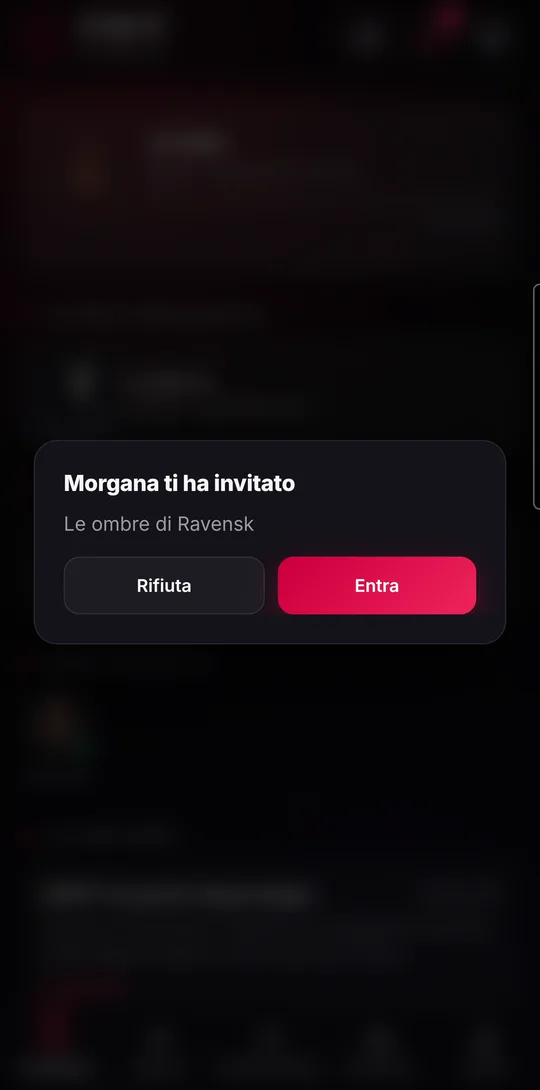
If ESKIT is open when a friend invites you, you don’t have to go looking for the invitation: within a few seconds a window pops up by itself in the middle of the screen.
- It shows who’s inviting you and the campaign name, with a ring that empties over 30 seconds (red for the last 5) and, if sound effects are on, a short vibration.
- “Join” takes you straight to the table’s lobby; “Decline” turns the invitation down and removes the notification.
- If you don’t tap anything, when time runs out the window closes with “Invitation still available in your notifications”: you’ll find it in the bell, with the same “Join” and “Decline”.
The window only appears for invitations that arrived less than two minutes ago, and only if you’re not already seated at a table.
At the table: adventure, party sheets, shared map
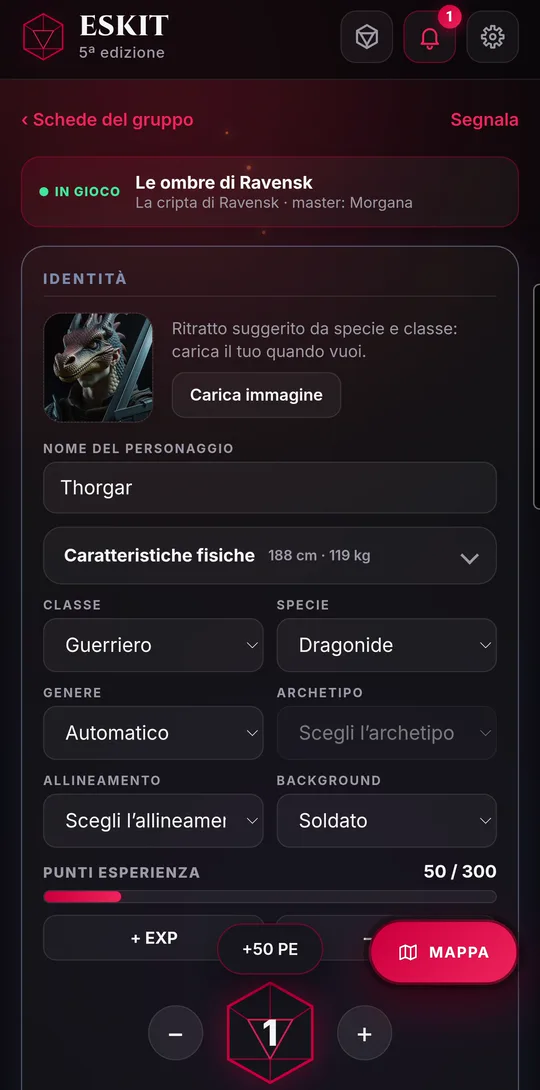
Once the adventure starts, the table page shows the scenarios in play and the party sheets, each in its player’s color. The red button becomes “MAP”.
- The GM taps a player under “Party sheets” and opens their full sheet. They can correct it and award experience with “+ XP”; on saving, the change reaches the player with the notice “Sheet updated by the GM”.
- The player has their own sheet as the main screen: every change saves itself. Under “The party” they see their companions’ sheets read-only, if the GM allowed it.
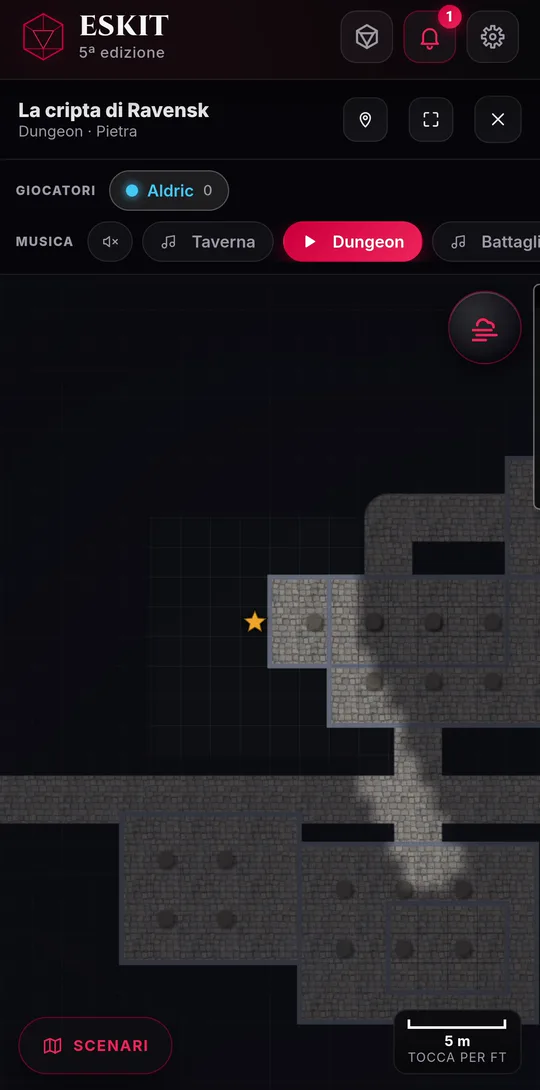
- Map: tapping a scenario under “Scenarios in play” (or the “MAP” button) opens the table map, the same for everyone.
On the map, the GM has a few extra bars at the top:
- “Players”: tap a player’s name to see the markers they placed, in their color.
- “Music”: tap a track to play it for the whole table, or silence to stop it. Players see “The GM started the music · tap to hear it”: one tap and they hear it too.
- “SCENARIOS”, at the bottom left, opens “Change scenario”: pick another place and tap “Confirm the change”. The map changes for everyone; markers already placed stay where they were.
Combat: setup and initiative
When the fight begins, the GM sets up combat from the table page. The monsters of the scenario in use are already in play.
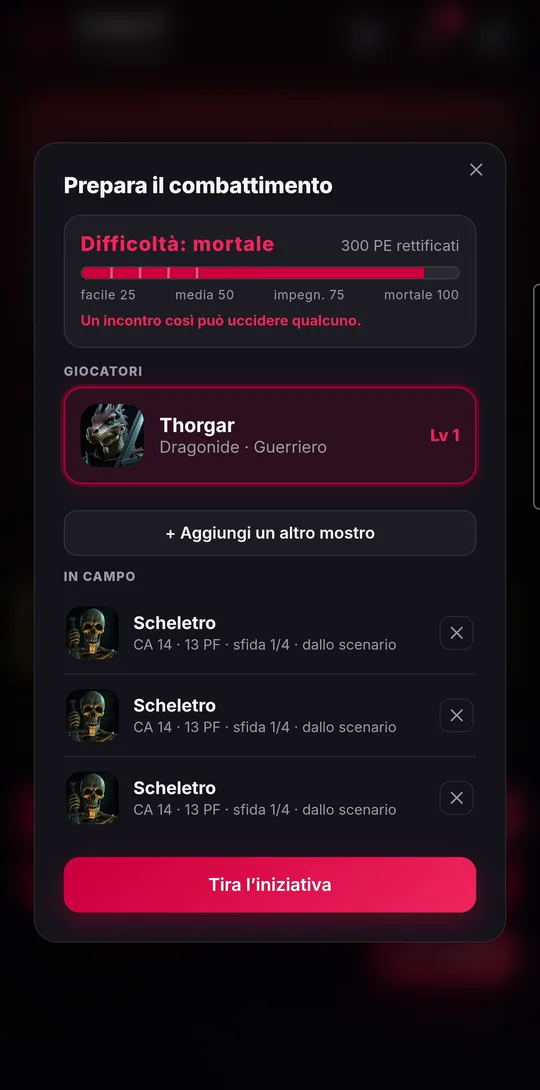
- Tap “Combat”.
- Under “Players”, tap the cards of those who are fighting. Under “In play” you find the scenario’s monsters; add more with “+ Add another monster” or remove them with the X.
- Check the difficulty bar: it tells you whether the encounter will be easy, medium, hard or deadly for that party.
- Tap “Roll initiative”: ESKIT rolls for everyone, orders the turns and sends them to the players too. Identical monsters are numbered.
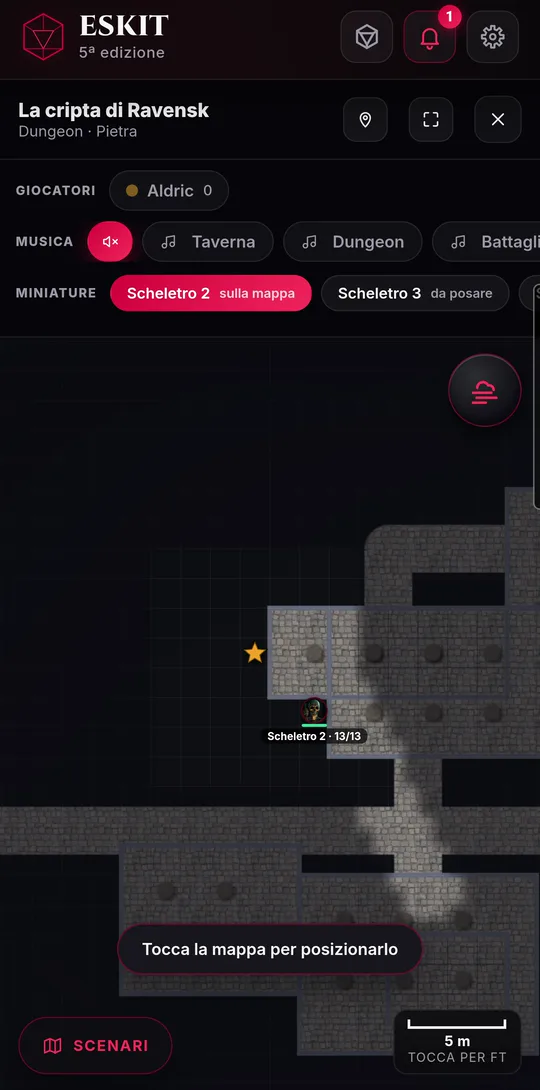
On the map, during the fight, the “Tokens” bar appears: tap a combatant marked “to place” and then a spot on the map to place their token. Tokens of large monsters take up several squares.
- Drag a token to move it: it snaps to the grid.
- Press and hold a token for its menu: “Move”, “Remove” (takes it off the map for everyone) or “Marker”, if there’s one underneath.
- Players see the tokens on their own map and can move only their own. They don’t see enemies’ hit points, or enemies hidden by the fog.
Combat: damage, conditions, turns
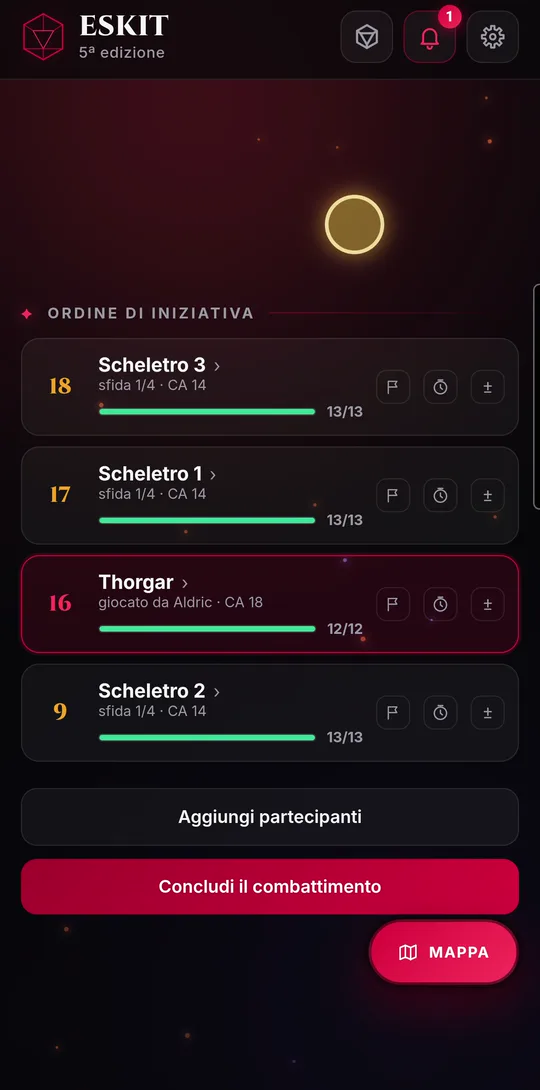
After initiative, the GM runs the fight from the turns page. Each move reaches the players within a few seconds.
- “Next turn ›” moves to the next combatant; after the last one a new round begins. “‹ Previous” goes back.
- The initiative number can be corrected by hand: the list reorders itself.
- “±” opens “Damage or healing”: enter the amount and tap “Damage”, “Healing” or “Temporary HP”. Damage uses up temporary HP first; the player who was hit sees their hit points drop.
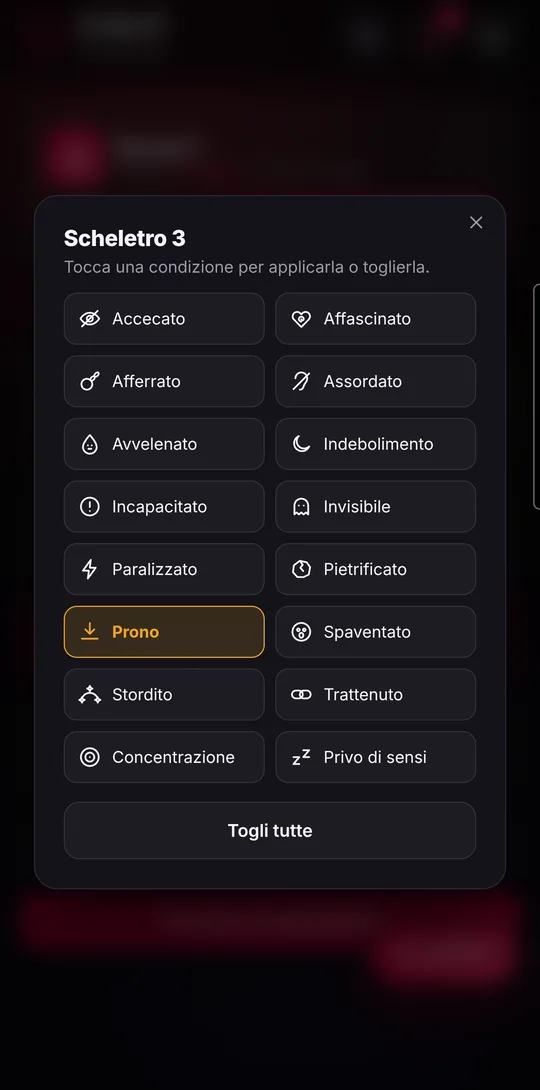
- The flag opens conditions: tap to add or remove blinded, prone, poisoned and the rest; “Clear all” removes them in one go. Everyone sees them.
- The clock means “Delay action”: the combatant moves to the end of the order.
- Press and hold a monster to change its name, Armor Class and maximum hit points, or to “Remove from combat”. It only applies to this fight: the bestiary doesn’t change.
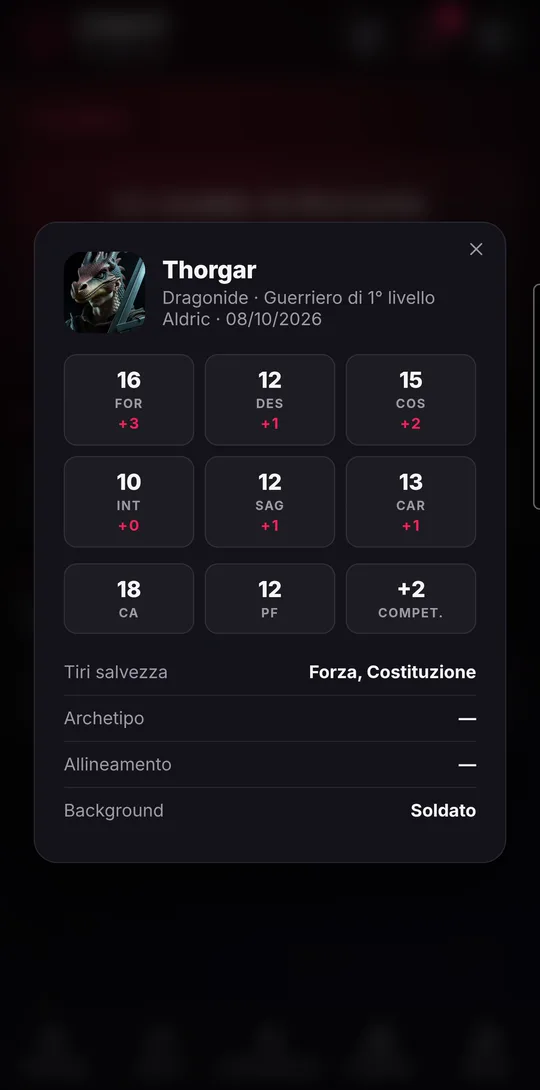
- Tapping a character opens their sheet for the GM; tapping a monster, its stat block.
The player follows read-only: the round, whose turn it is, everyone’s conditions and their own hit points. For the others they only see whether they’re allies or enemies. Tapping their own row opens their sheet.
Pausing, resuming and ending the campaign
A campaign spans several sessions. At the end of an evening the GM pauses it; when the story is over, the GM ends it.
- The GM taps “End the campaign”: “Close the session?” opens.
- “Pause” saves maps, markers and characters. The players leave the table automatically and go back to the Tavern.
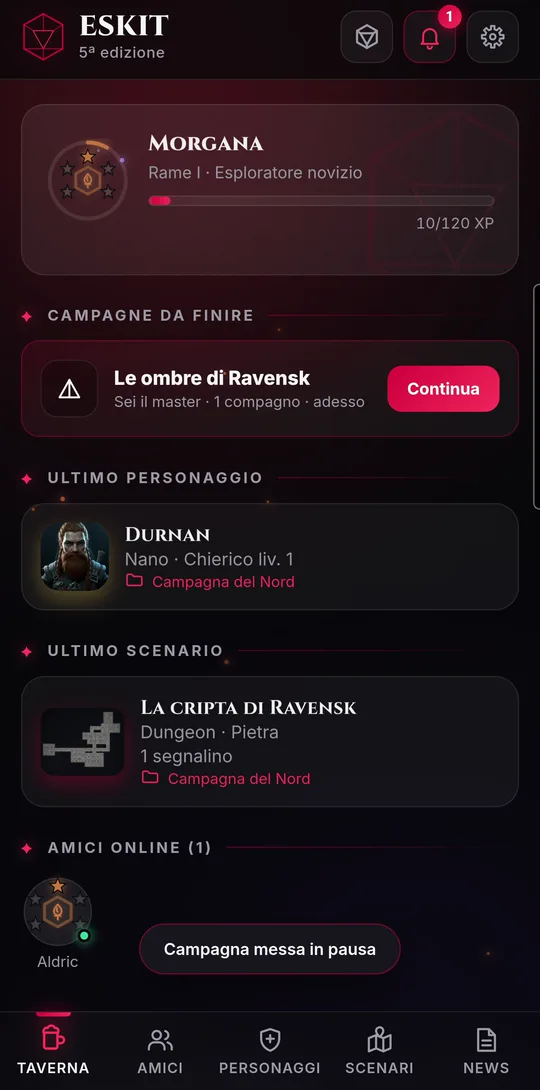
- To resume, the GM taps “Continue” under “Campaigns to finish” in the Tavern (or “resume” in “Campaigns”): they’re back at the table and the campaign restarts for everyone.
- Players rejoin from “Campaigns”, tapping “resume” on the campaign. Their character is the same as before.
If the GM resumes before you, you see “The game resumed without you” with “Rejoin the table”; the GM sees you under “Not back yet” until you tap it.
- When the story is over, the GM taps “End the campaign” and then “End permanently”.
- Confirm with “Yes, end it”. Characters and scenarios stay in everyone’s collections.
Resuming a campaign saved only on the device
Normally a campaign lives on the server and resuming works as described in “Pausing, resuming and ending the campaign”. But if the campaign never reached the server (for example because there was no connection when it was created, and ESKIT warned “Campaign only on this device”), resuming goes through a separate lobby.
- Tap “Continue” in the Tavern, under “Campaigns to finish”, or “resume” in “Campaigns”.
- The resume lobby opens: it tells you which scenario you restart from, with the markers already placed, and under “Who’s back” it shows who is “present” and who is still “waiting”.
- When everyone is there, the GM taps “Resume the adventure”.
If you’d rather put it off, tap “Leave: the campaign stays paused”: you go back to the Tavern and the campaign stays among those to finish.
Report and block
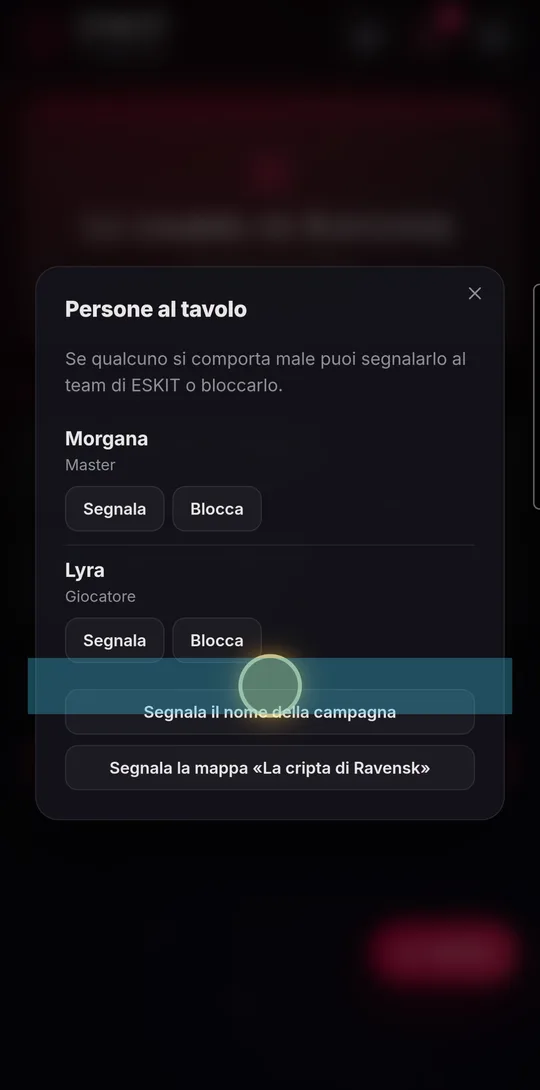
If someone at the table behaves badly, you can report them to the ESKIT team or block them. The person you report won’t know it was you.
- On the table page, tap “Report, block or remove”: “People at the table” opens, with everyone playing with you.
- Next to a person, tap “Report” or “Block”.
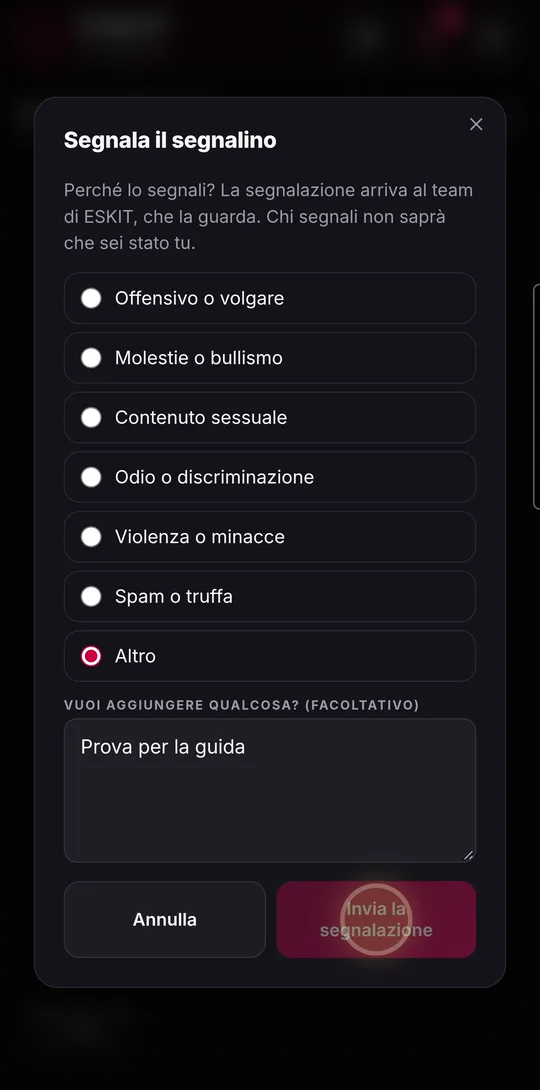
- To report, choose the reason (offensive or vulgar, harassment or bullying, sexual content, hate or discrimination, violence or threats, spam or scam, other), add a note if you like and tap “Send report”. With the “Also block…” box you block them at the same time.
- Block: the person you block can no longer send you friend requests, invite you or join your tables, and is removed from your friends. They aren’t told anything.
- If you block another player who is seated at the same table as you, ESKIT reminds you: you can leave the table, report them or “Stay at the table”.
- On the map: press and hold someone else’s marker and tap “Report” to report that marker.
- Players can also report the campaign name or the table map.
- The GM can also “Remove from the table”: the player only gets a message saying they’re no longer part of the campaign, and can come back if invited again.
ESKIT is free and runs in the browser, on phones, tablets and computers.