Chapter 6
Scenarios and the map
Preparing the places of your adventure: the map, the music, the monsters, the markers and the fog.
Scenarios
A scenario is a place ready for the table: the map, the music, the GM’s notes and the monsters the players will meet. You need at least one to start a campaign.
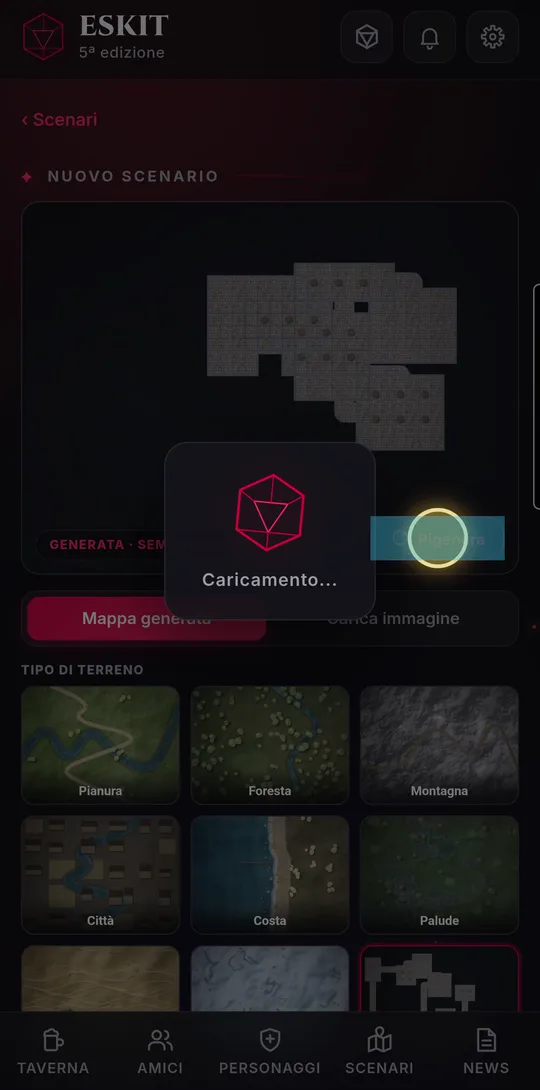
- On the “Scenarios” page, tap “NEW SCENARIO”.
- With “Generated map”, choose the terrain type (plains, forest, mountain, city, coast, swamp, desert, glacier, stone): the map draws itself. “Regenerate” offers another variant. With “Upload image” you use your own map (ideally 4:3, at least 1600×1200 pixels, under 12 MB).
- Type the “Scenario name” and choose the “Category”.
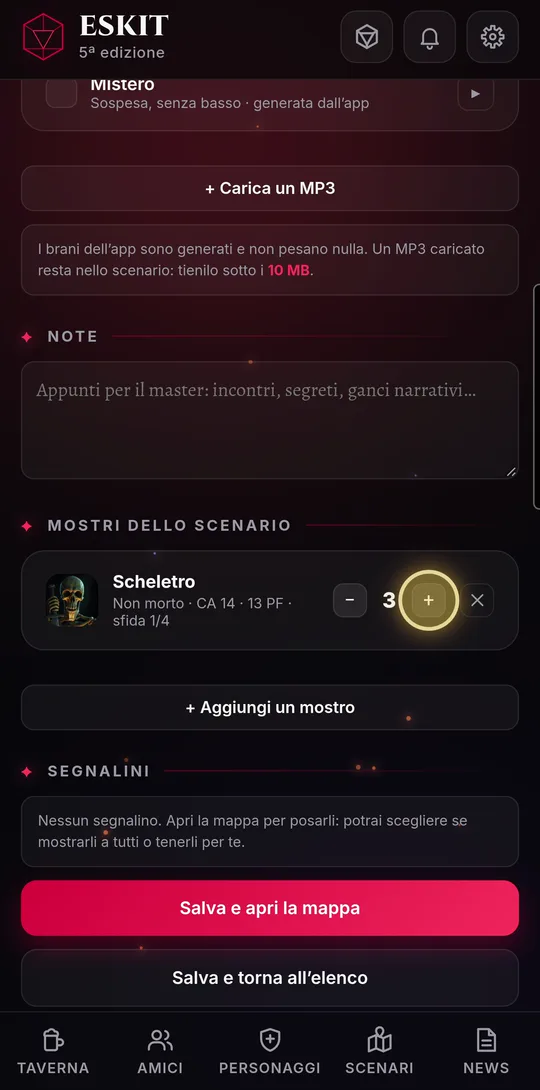
- In “Scenario music”, tick the tracks you’ll want to play at the table; ▶ previews them for a few seconds. You can add an MP3 of your own with “+ Upload an MP3” (under 10 MB).
- In “Scenario monsters”, tap “+ Add a monster”, search the bestiary, choose quantity and notes and tap “Add to the scenario”.
- Tap “Save and open the map” to place markers and fog, or “Save and back to the list”.
In the list, scenarios can be searched by name, category or terrain, sorted and filtered. Stars, folders, sharing and the bin work just as for characters.
The map: markers, fog, measurements
On the map you prepare what the players will see: markers for doors, traps and treasure, and the fog that hides rooms not yet explored. The grid squares are 5 feet.
- Drag with one finger to move around, pinch with two fingers to zoom.
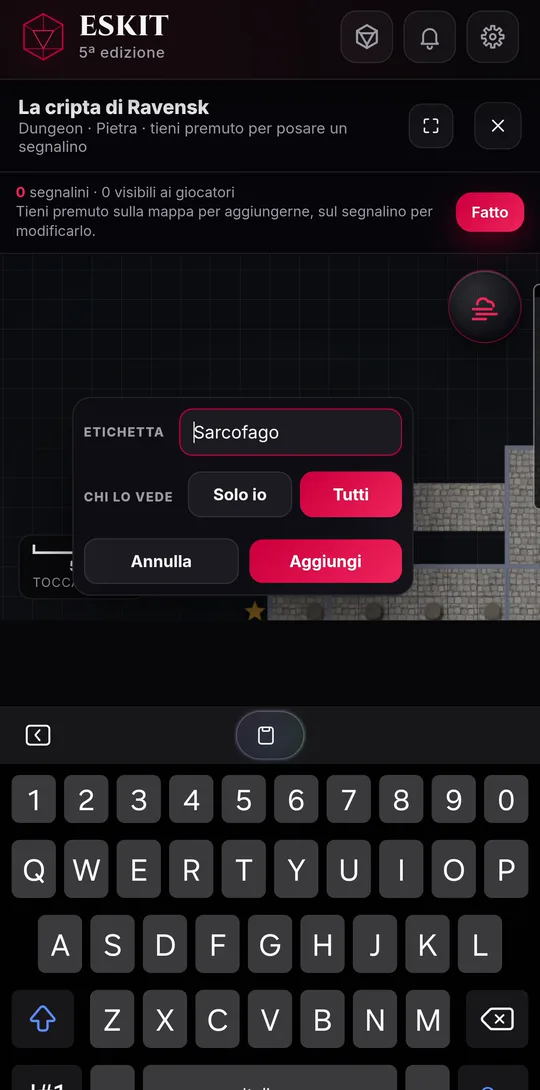
- Placing a marker: press and hold on an empty spot, choose the shape, then the color, type a label if you like and decide who can see it: “Only me” or “Everyone”. Tap “Add”.
- Changing it: press and hold on the marker. The menu offers “Edit” and “Delete” and, while you’re preparing the scenario, a visibility switch too. A simple tap shows its name.
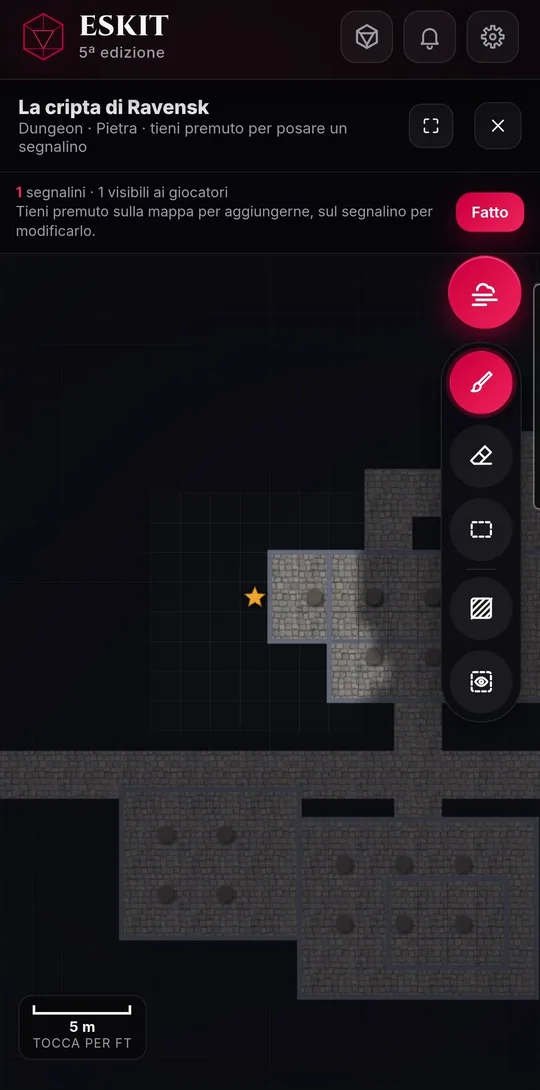
- Fog: tap the round “Fog” button. “Cover all” hides the map from players; with “Rectangle · reveals a room” you drag over a room to reveal it; “Brush · reveals” and “Eraser · covers again” work with your finger, and the bar beside them changes their size. After “Cover all” or “Reveal all” you have a few seconds to “Cancel”.
- Ruler: at the bottom it measures the map; tap it to switch between feet and meters.
When you’re finished, tap “Done”: markers and fog are saved in the scenario, ready for the table.
ESKIT is free and runs in the browser, on phones, tablets and computers.